Starting an OIC Integration the Moment a File Lands on the File Server
Starting an OIC Integration the Moment a File Lands on the File Server
Most file loads I see in Oracle Integration (OIC) are scheduled. Every fifteen minutes an integration lists a folder, loops through whatever it finds and processes each file, so users wait for the next run to see their file picked up, and the integration uses up a run every fifteen minutes even when the folder is empty.
If your files land on OIC's own File Server, you don't need a schedule at all. In current OIC releases the File Server raises a File created event whenever a file is uploaded, and an integration can subscribe to it. This post walks through the full build, which is a small starter integration that fires on the event and a child integration that does the actual work.
This only works with the OIC File Server, not an external SFTP server
The OIC File Server is the SFTP server built into your OIC instance, and it is the only server that raises these events. An external SFTP server has no way to tell OIC that a file arrived, so for those you're back to polling, either with a schedule or with the FTP adapter's own polling trigger.
If you aren't sure which one you have, look at your FTP connection's host. The File Server host starts with fs- and uses your instance name (for example fs-myinstance...oraclecloud.com), usually on a non-standard port.
The event integration in this post does almost nothing itself. It moves the file and then calls a second integration, the one that actually processes the file, passing it the file name. I'll call these the starter and the child. I built it this way so the trigger can be changed easily later, for example to a schedule if the event ever misbehaves, because you can't swap the trigger inside an integration that already holds all the processing. The second integration is an ordinary app-driven integration with a REST trigger that takes a file name, and it has to be active before you can call it.
Step 1: Create an Event integration
Inside your project, add an integration and choose Event. In OIC, "Event" covers both the events you publish yourself and the system events that OIC raises on its own, and system events are only available inside a project.
The trigger panel opens on Choose event. Open the System tab and expand File Server, where you'll see seven events:
| Event | Raised when |
|---|---|
| File created | A file is uploaded or written |
| File deleted | A file is deleted |
| File downloaded | A file is downloaded |
| File moved | A file is moved or renamed |
| Folder created, deleted, moved | The same for folders |
Select File created.
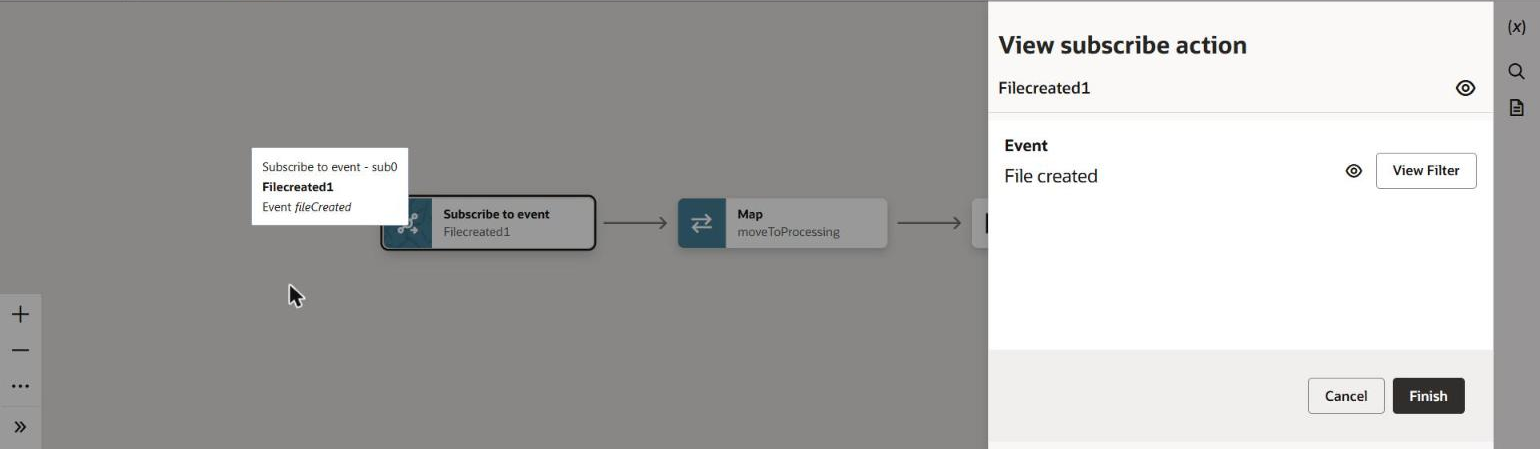
The finished trigger: one subscription to the File Server's File created event.
Step 2: Filter to one folder and file pattern
Without a filter, the integration runs for every file created anywhere on the File Server, so you need one. The filter's Designer view only works after the subscription has been saved once, so on a new integration finish the trigger with no filter, save, and then reopen the trigger and click Add Filter.
The filter is a jq expression evaluated against the event. The event's fields sit under .data, where .data.name is the file name and .data.path is its folder, and there are also size, extension, time and the uploader's details. In the Designer view you can drag fields from the event into the expression box, so dragging path gives you .data.path.
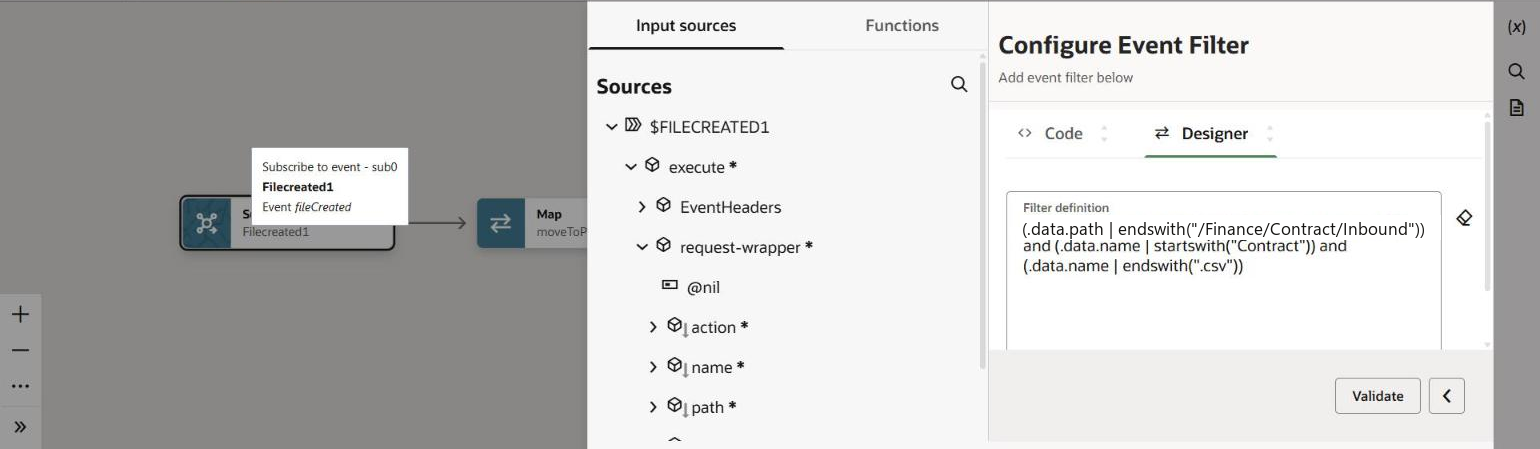
The filter in Designer view. The event's name and path fields are under request-wrapper on the left.
Ours is:
(.data.path | endswith("/Finance/Contract/Inbound"))
  and (.data.name | startswith("Contract"))
  and (.data.name | endswith(".csv"))
OIC stores it as:
{"type": "jq_filter", "filter-def": "(.data.path | endswith(\"/Finance/Contract/Inbound\")) and ..."}
I used endswith on the path rather than an exact match because the path in the event is the File Server's own path, which may include a home-folder prefix that your FTP connection doesn't show, and endswith matches whether that prefix is there or not.
Step 3: Move the file into a processing folder
Add an FTP invoke on your File Server connection using the Move a File operation. Point it from the inbound folder to a processing folder, and in its map set both the file name and the target file name to the event's name.
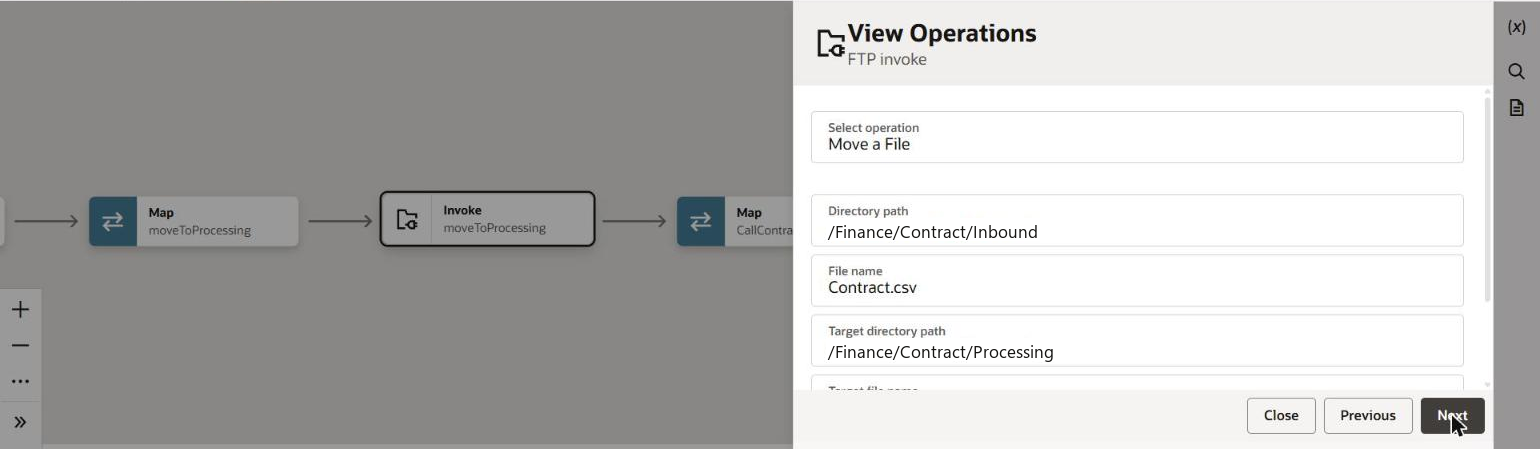
The Move a File operation, from /Finance/Contract/Inbound to /Finance/Contract/Processing. The Contract.csv file name typed here is only a placeholder, because the map in front of the move supplies the real name from the event.
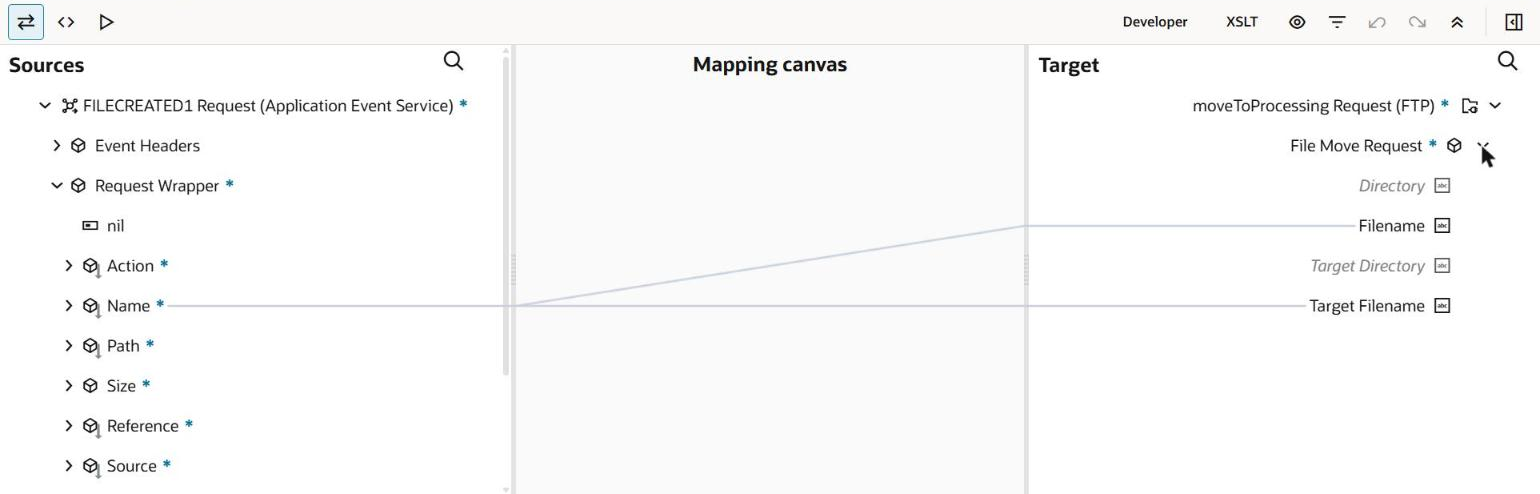
The map in front of the move sends the event's Name to both Filename and Target Filename.
Moving the file first means nothing else can pick it up while the child is reading it from the processing folder, and a scheduled fallback, if you ever add one, only sees files nobody has claimed yet.
The move raises a File moved event rather than File created, so it doesn't trigger the starter again.
Step 4: Call the child
Add an Integration action and pick your project, the child and its POST operation. OIC adds a map in front of it, where you map two fields:
| Child field | Source in the starter |
|---|---|
fileName | Request Wrapper > name from the event |
parentInstanceId | Integration Metadata > Runtime Details > Instance Id |
The instance ID lets you trace each child run back to the event run that started it.
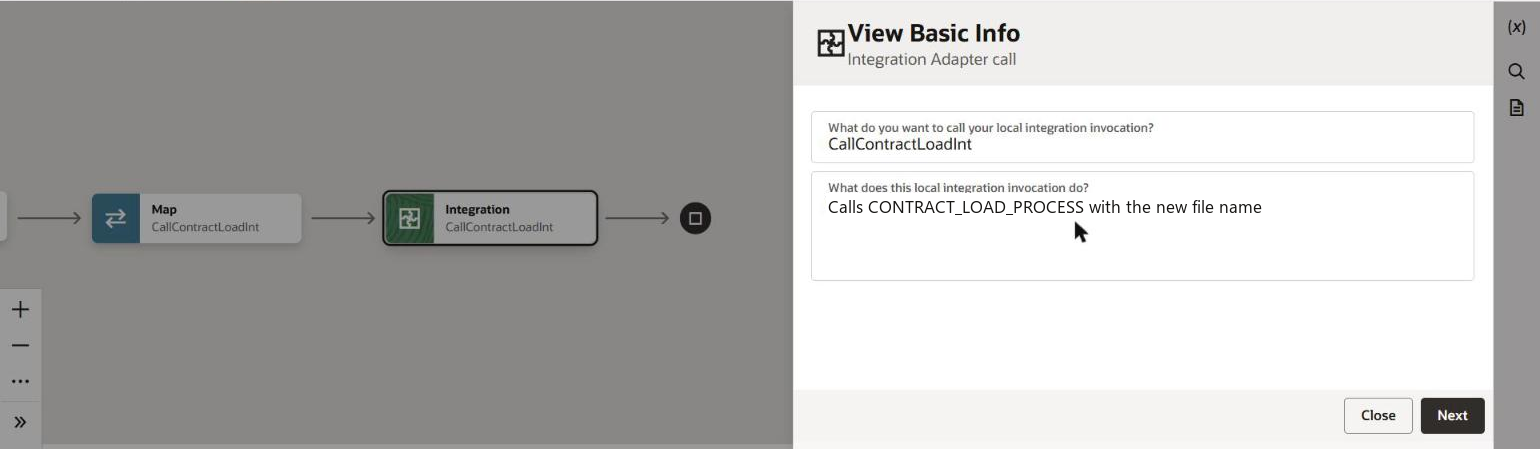
The Integration action that calls the child, here named CallContractLoadInt. The child integration is CONTRACT_LOAD_PROCESS.
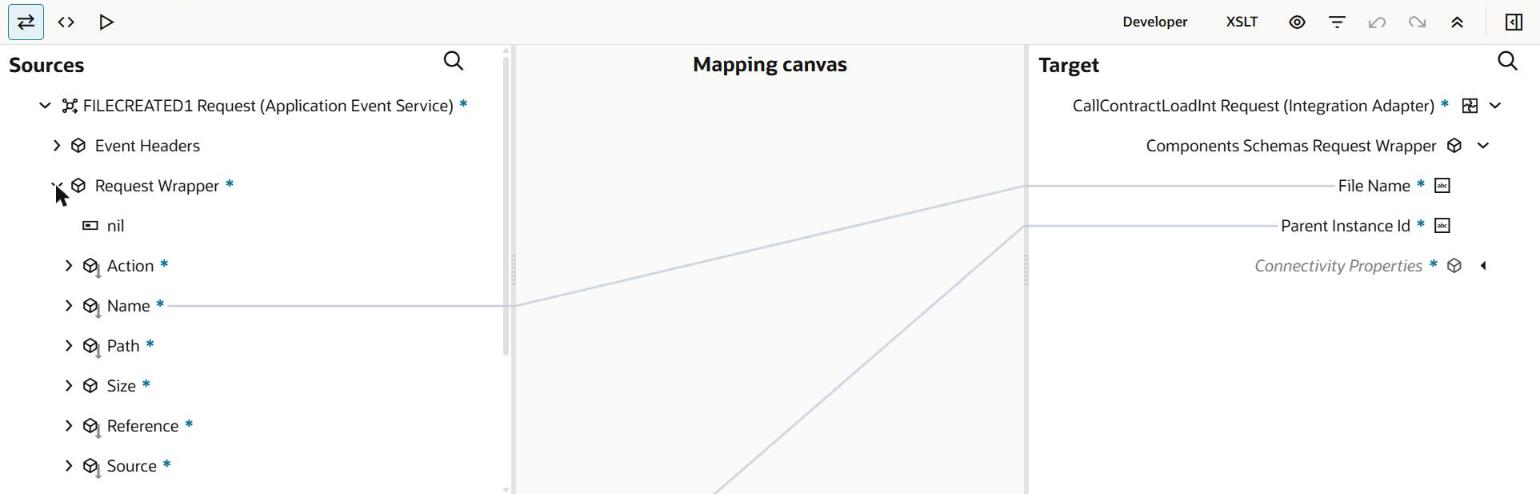
The map in front of the call. Name goes to the child's File Name, and the line running off the bottom comes from Integration Metadata > Instance Id and goes to Parent Instance Id.
Step 5: Set the business identifier and save
Open the tracking settings and drag the event's name into the primary business identifier. Without one the integration stays in Draft, and with it you can search the monitoring screens by file name.
That leaves a starter with five steps: the event trigger, a map and the move, and a map and the call to the child.

The finished starter, left to right: the Filecreated1 subscription, the moveToProcessing map and FTP invoke, then the CallContractLoadInt map and Integration call.
Testing the starter and child
Activate the starter, then use any SFTP client to upload a file that matches the pattern to the inbound folder. The starter's instance should appear in monitoring within seconds with the file name as its identifier, followed by the child's instance.
Also test with a file that doesn't match the pattern and confirm that nothing runs.
If you have a scheduled load watching the same folder, switch it off first, because two starters on one folder will race for the same file.
Problems I ran into during the build
- File Server events are under the System tab rather than with your own events, and they only appear inside a project.
- The filter Designer is disabled on a new trigger, so save once without a filter and then come back.
- Mapper namespace prefixes differ between maps. The same event namespace was
ns15in one map andns16in the next, so if you edit a map in code view, take the prefix from that map's own tree or the designer will report the mapping as invalid. - The call-integration list hides inactive integrations, which is why the child has to be activated first.
- Identifiers are limited to 32 characters, so pick names that fit.
- Events expire after 24 hours. If the starter is deactivated for longer than that, files uploaded in the meantime won't start it when it comes back, so a scheduled sweep of the inbound folder is a sensible safety net.
Because the child only needs a file name, you can also call it directly to reprocess a file.