Setting Up Security for Oracle's BOSS REST APIs
My previous post covered what Oracle's BOSS REST APIs under /api/boss do, with three example calls. This one covers the security setup those calls need. BOSS doesn't accept Basic authentication, so every call needs an OAuth token from the pod's identity domain, and the user or application behind that token needs Fusion roles that hold permission groups, which most seeded job roles don't have yet.
The four security layers a BOSS call passes through
Each layer answers one question, and a request meets them in this order:
| Layer | The question it answers | Where it is set up | What you see if it fails |
|---|---|---|---|
| 1. OAuth client and scope | Is this program allowed to ask for a BOSS token at all? | An application in the pod's OCI IAM identity domain, with the Oracle Boss Cloud (Spectra) scope, urn:opc:resource:fusion:<pod>:boss/ | The identity domain refuses the token request, and a call without a token gets a 401. |
| 2. Grant type | Whose identity does the token carry, a person's or the application's? | The grant types allowed on that application. Authorization code (with PKCE for a public client) gives a token for the person who signs in, and client credentials gives a token for the application itself. | The identity domain refuses a grant type the application doesn't allow. |
| 3. Roles with permission groups | Is that identity allowed to read or change this business object? | In Fusion. The profile option ORA_ASE_SAS_INTEGRATION_ENABLED must be Yes at Site level, and the role needs Enable Permission Groups switched on and the object's permission group. A person gets roles the usual way. An application's roles are assigned on the Application Extensions page of the Security Console. | 403 Authorization is denied for action read on business object <object>. |
| 4. Data security | Which rows can it see? | The same data roles and security profiles that limit what a user sees in the UI. For General Ledger that is the data access set, which Fusion assigns only to users, so an application that signs in with client credentials sees no journal rows. | Rows the identity isn't allowed to see are left out of the results, and when it can see none of them the extraction endpoint returns 204 No Content. |
Layer 3 is the one that catches people off guard, because a job role that works in the UI doesn't necessarily work for BOSS. Permission groups are a newer layer on top of job roles and privileges, and each one grants an action on one business object. Oracle's A-Team uses the common lookups API as its example: a permission group named read: Common Lookup Type Permission Group grants read access to the business object Common Lookup Type. Seeded job roles such as Accounts Payable Manager don't contain permission groups yet, so a BOSS call made with only those roles returns 403.
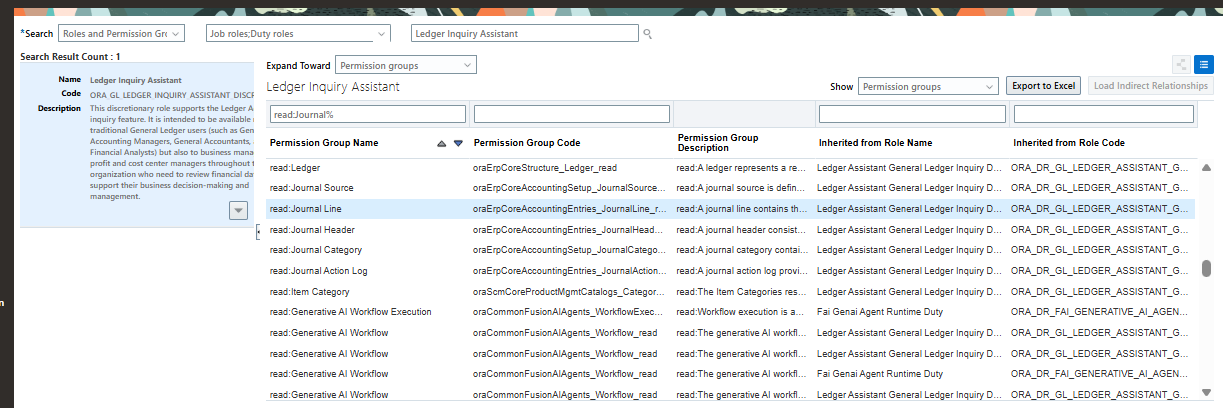
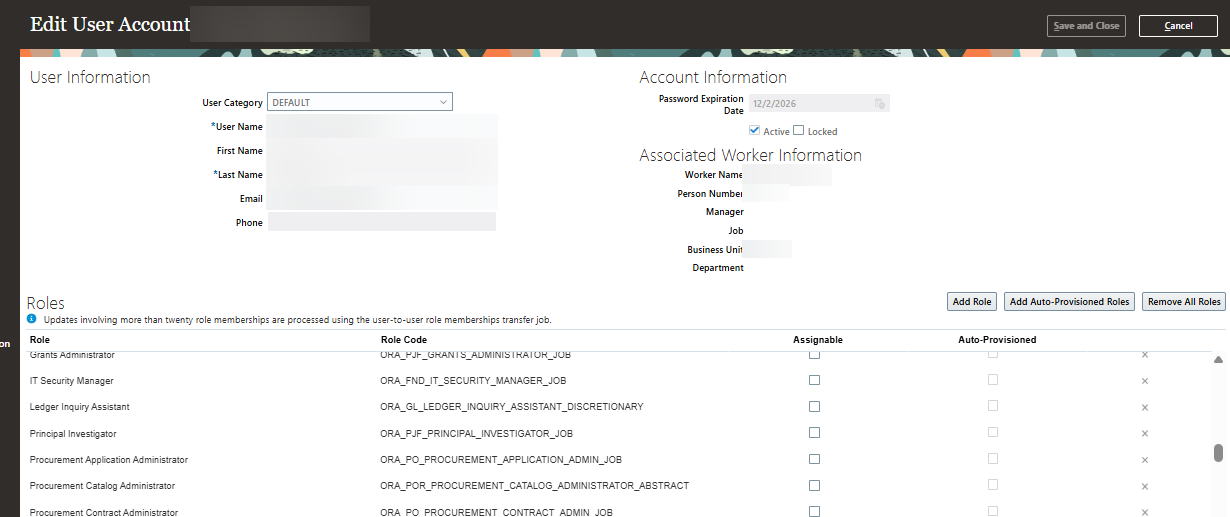
To see which roles do, open the Security Console, go to Roles and change the search from Roles and Privileges to Roles and Permission Groups. That search only finds roles that contain permission groups. Pick a role, set Show to Permission groups and click Load Indirect Relationships to list everything it inherits. For the queries in the previous post, the role is Ledger Inquiry Assistant (ORA_GL_LEDGER_INQUIRY_ASSISTANT_DISCRETIONARY), a read-only role Oracle added for the Ledger Agent. It inherits a General Ledger inquiry duty that holds permission groups such as read:Journal Source, read:Journal Header and read:Journal Line.
Choosing how to get a token
Which kind of OAuth client you need depends on whether a person is there to sign in:
| A person signs in (a script, Postman, a command-line tool, an agent working for you) | No person signs in (a scheduled job, Oracle Integration or another server) | |
|---|---|---|
| Identity domain application | Mobile Application, which the identity domain uses for any public client | Confidential Application |
| Grant type | Authorization code with PKCE | Client credentials |
| What proves the program is genuine | A one-time PKCE code it generates for each sign-in, so no secret is stored | A client secret |
| Redirect URL | Required, and registered in advance | Not used |
| Whose identity the token carries | The person who signed in, with their roles and their data access | The application, with only the roles you assign to it and no data access |
| How long it lasts | About an hour. If the client allows the Refresh token grant, the program can renew it without another sign-in | About an hour. Request a new token when it expires |
PKCE stands for Proof Key for Code Exchange, and it is how a program with no secret proves it is the same program that started the sign-in. Before it sends the person to sign in, the program makes a random value and sends only a hash of it. When it swaps the returned code for a token, it sends the original value, and the identity domain checks it against the hash. A code stolen on its way back is useless to anyone else, because they don't have the original value.
What redirect URLs protect
When a person signs in through OAuth, your program never sees their password. It sends the browser to the identity domain's sign-in page, the person signs in there, and the identity domain sends the browser back to a return address with a one-time code that your program swaps for a token. That return address is the redirect URL, and the identity domain only sends the code to addresses registered on the client in advance:
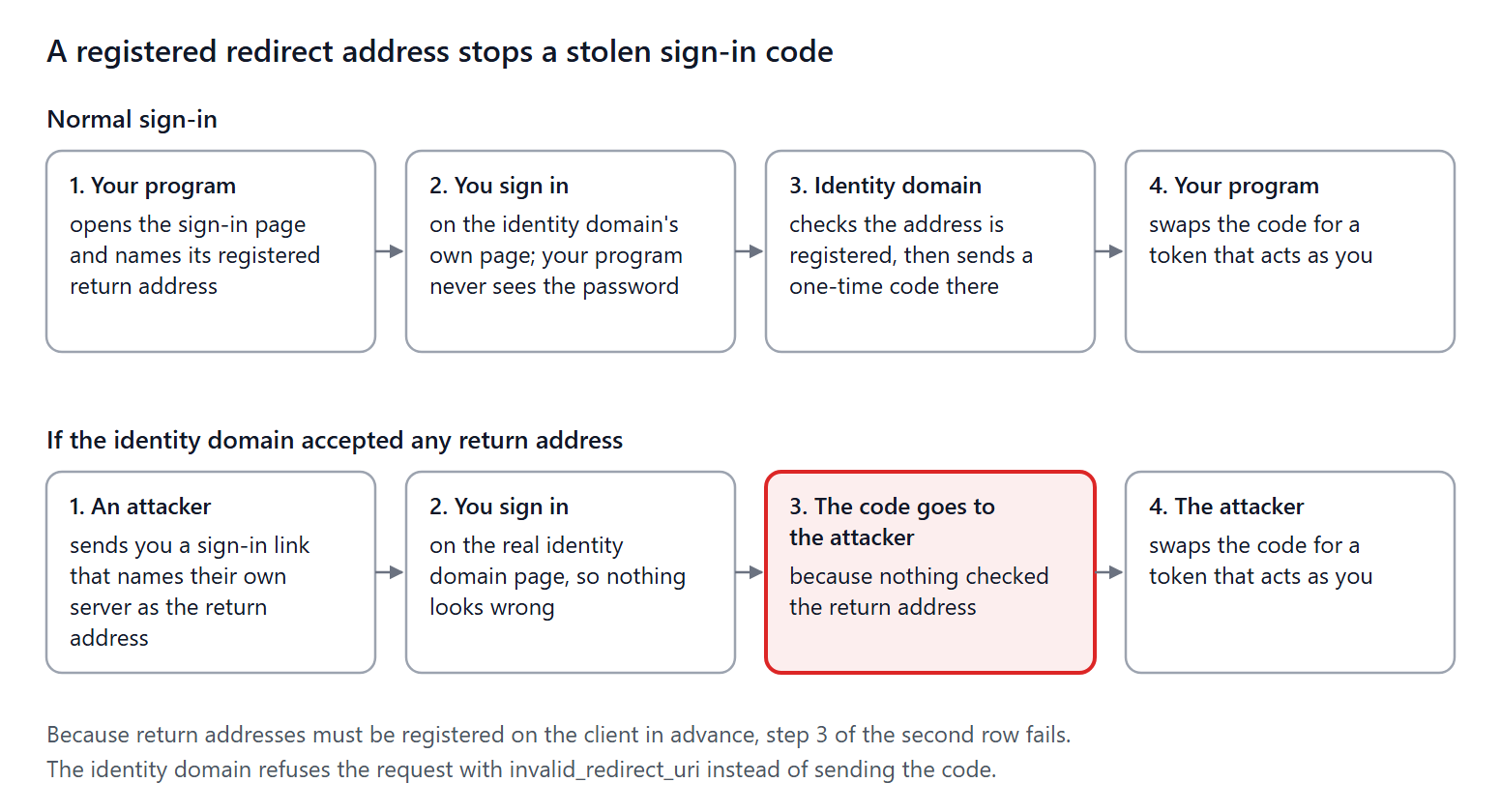
This is also why you can't reuse the client Fusion already has in the identity domain. Its registered return addresses all point to Fusion's own pages, so a request to send the code anywhere else fails with invalid_redirect_uri.
You don't need to expose anything to the internet for this. The return address only has to be one the browser can reach, so a script can listen locally on http://127.0.0.1:<port>/callback, and Postman provides its own hosted callback, https://oauth.pstmn.io/v1/callback, which it uses when you tick Authorize using browser, and it picks up the code itself, so you register that address on the client and nothing else.
Setting up a client for a person who signs in
These steps set up a client that Postman uses to sign a person in and call BOSS. A script uses the same client with its own redirect URL.
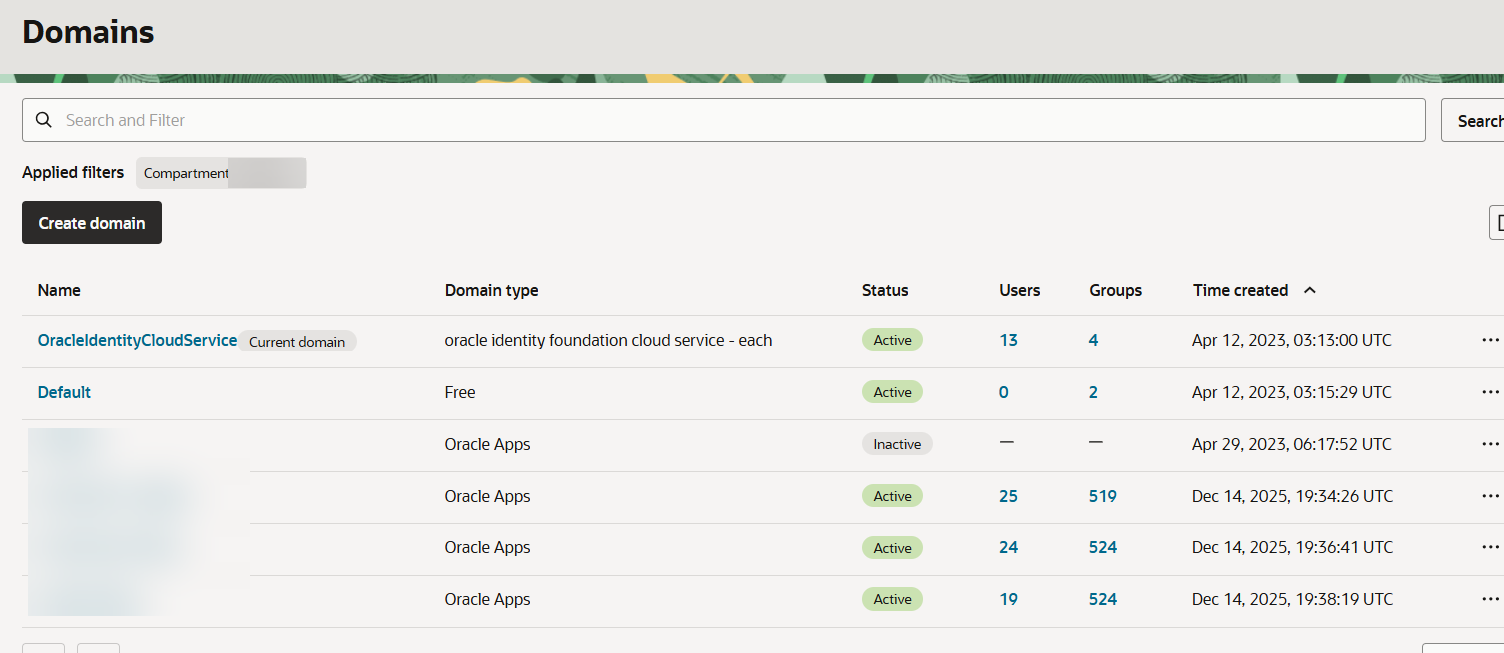
- Find the Fusion identity domain. In the OCI console, go to Identity & Security > Domains and open the domain whose Domain type is
oracle-apps. Its Domain URL matches the address your Fusion login page redirects to. Then open Integrated applications.
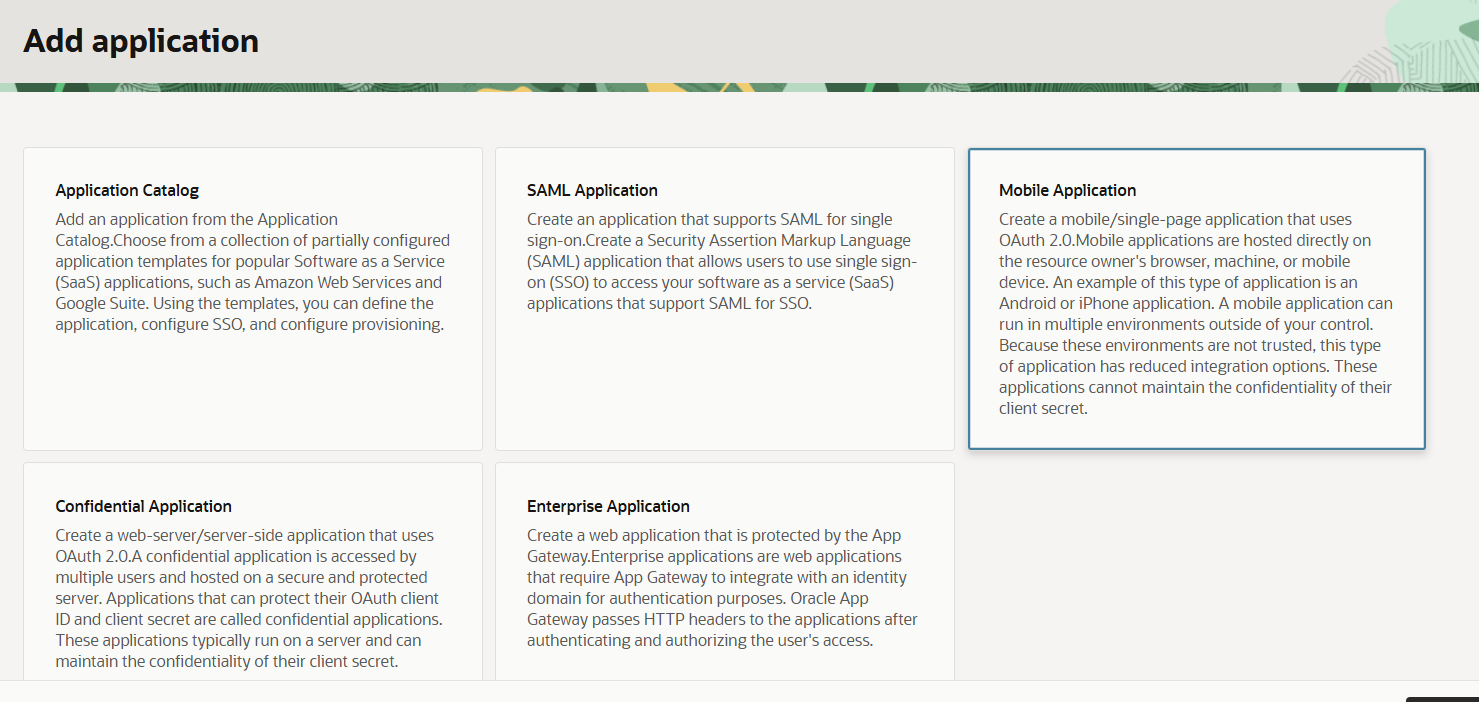
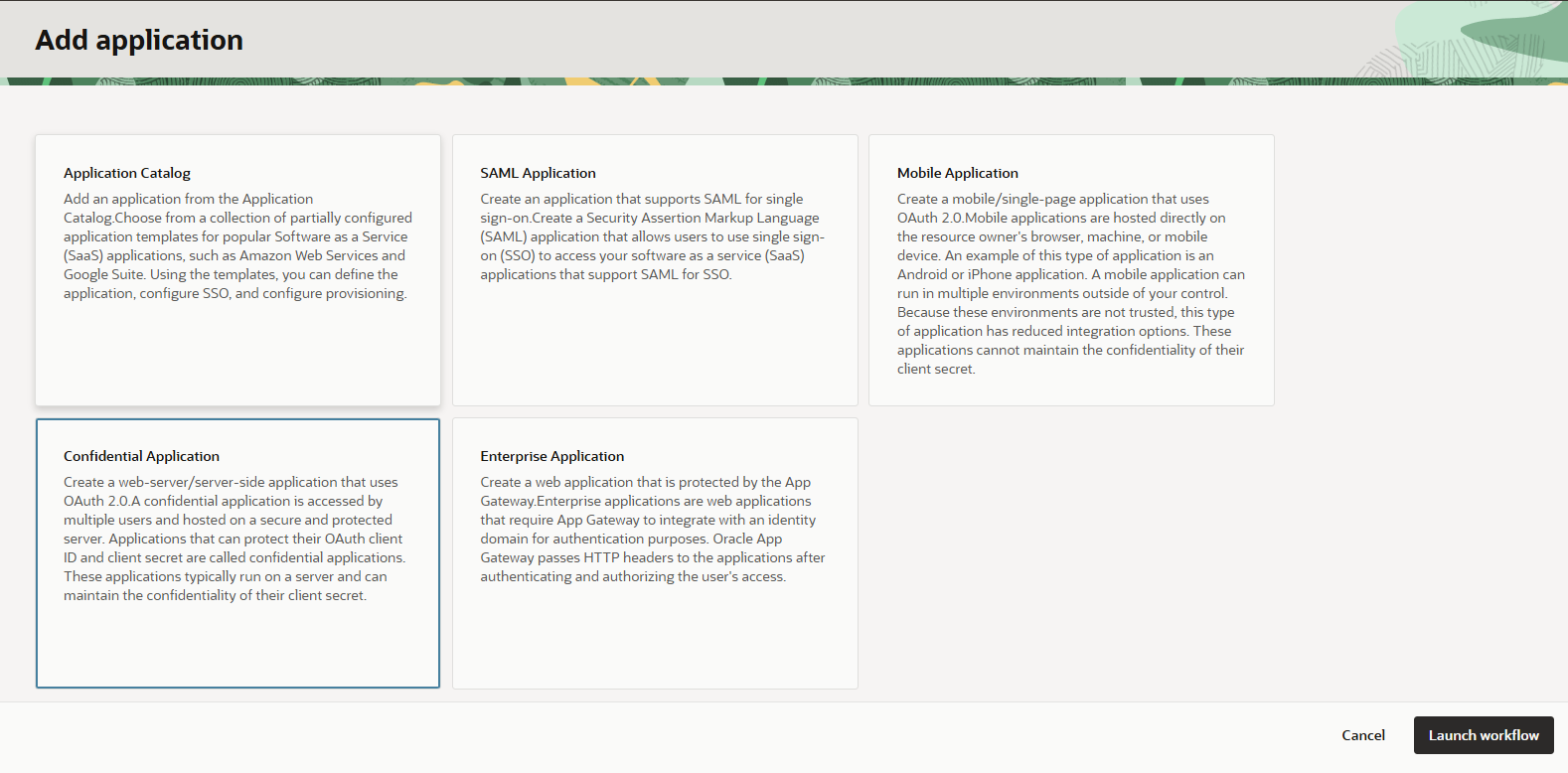
- Add a Mobile Application. Click Add application and choose Mobile Application. The name is misleading, because nothing runs on a phone. In the identity domain, "Mobile Application" means a public client, a program on someone's own computer that can't keep a secret safe.
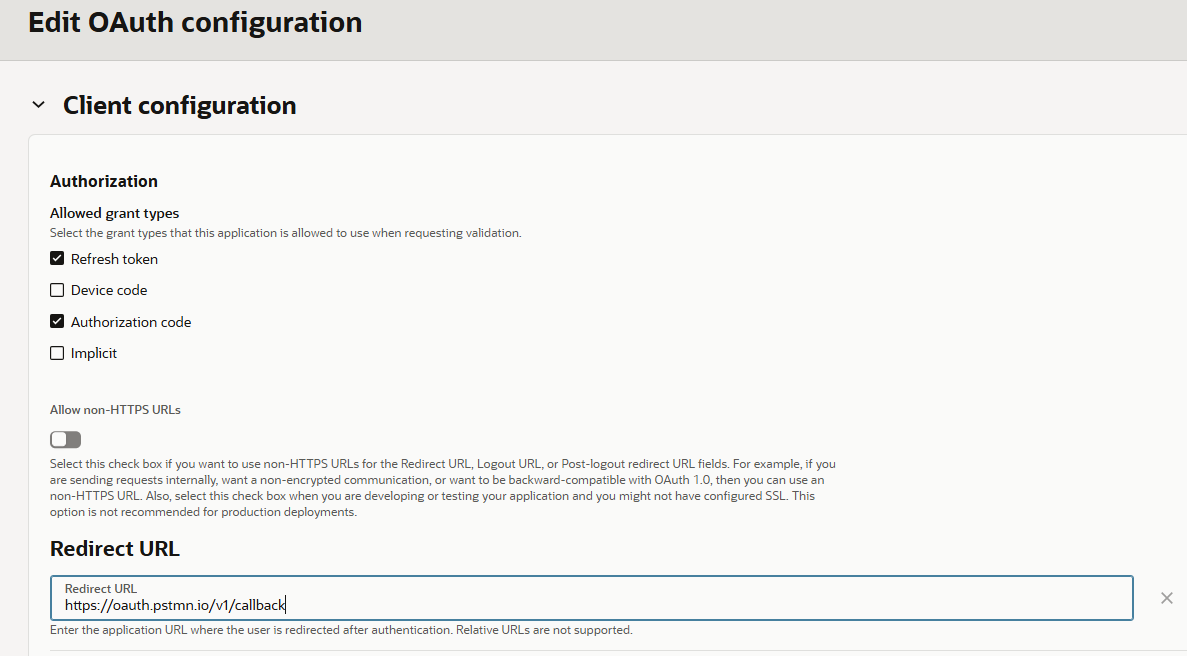
- Configure OAuth. Open the new application's OAuth configuration tab and click Edit OAuth configuration. Tick Authorization code and Refresh token and leave the other grant types unticked. Add the redirect URL, which for Postman is
https://oauth.pstmn.io/v1/callback. If a script useshttp://127.0.0.1, turn on Allow non-HTTPS URLs as well.
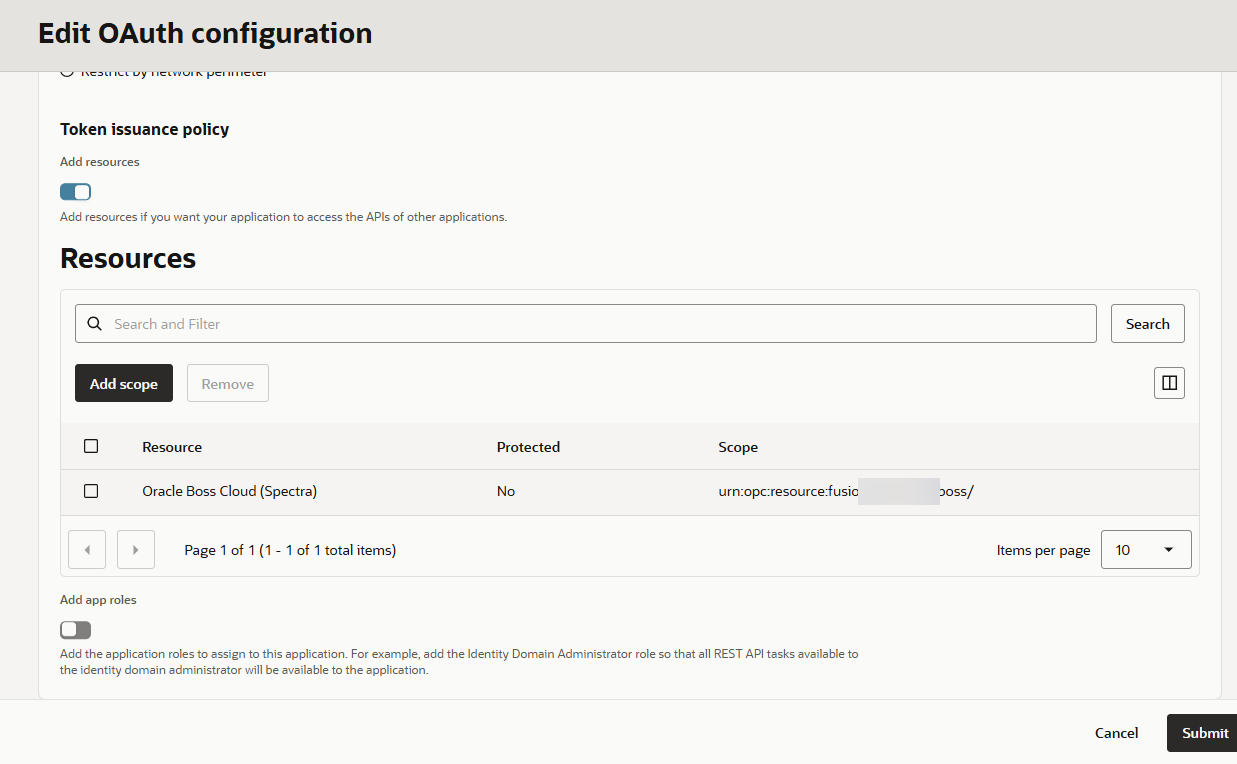
- Add the BOSS scope. At the very bottom, under Token issuance policy, turn on Add resources, which is easy to miss. Click Add scope and tick Oracle Boss Cloud (Spectra), which covers
/api/boss. If it isn't in the list, you are in the wrong identity domain.
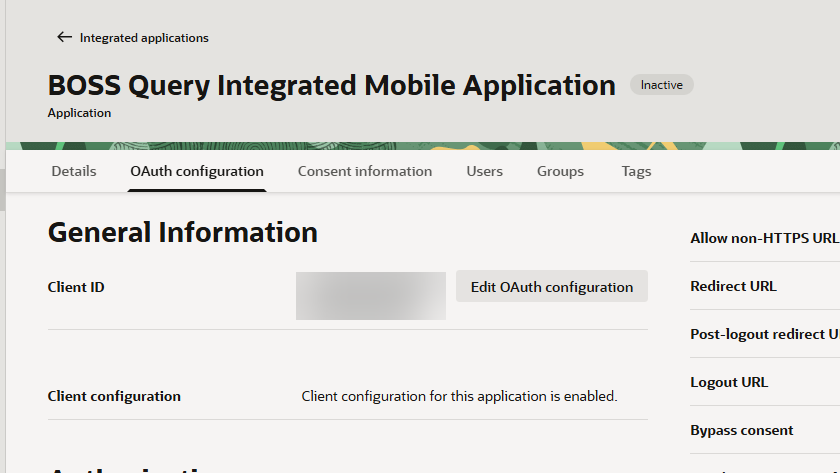
- Activate it. Save, copy the Client ID from the OAuth configuration tab (not the Application ID on the Details tab, which looks similar), and choose Actions > Activate.
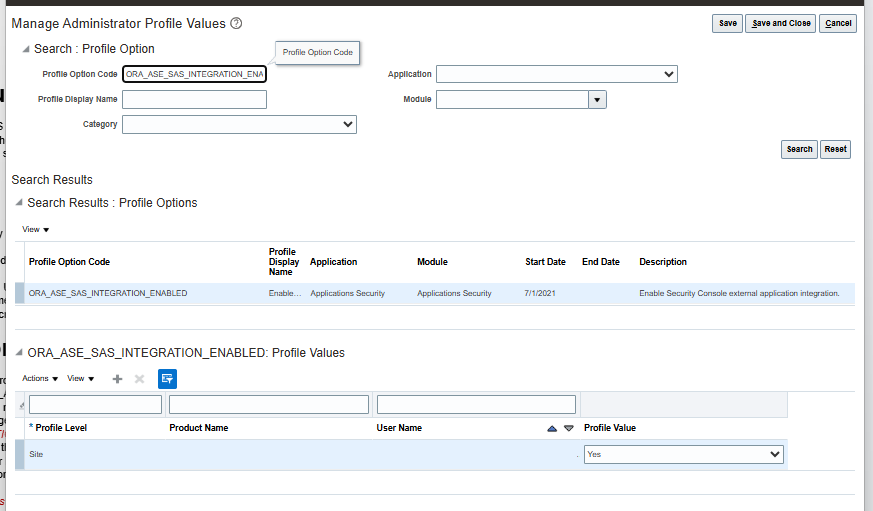
- Check the Fusion profile option. In Setup and Maintenance, open the task Manage Administrator Profile Values and confirm that
ORA_ASE_SAS_INTEGRATION_ENABLEDis Yes at Site level.
- Give the user a role with permission groups. The person who signs in needs a role that holds the permission group for each object they query. For the queries in the previous post that is Ledger Inquiry Assistant, shown earlier, assigned to the user along with their usual data access.
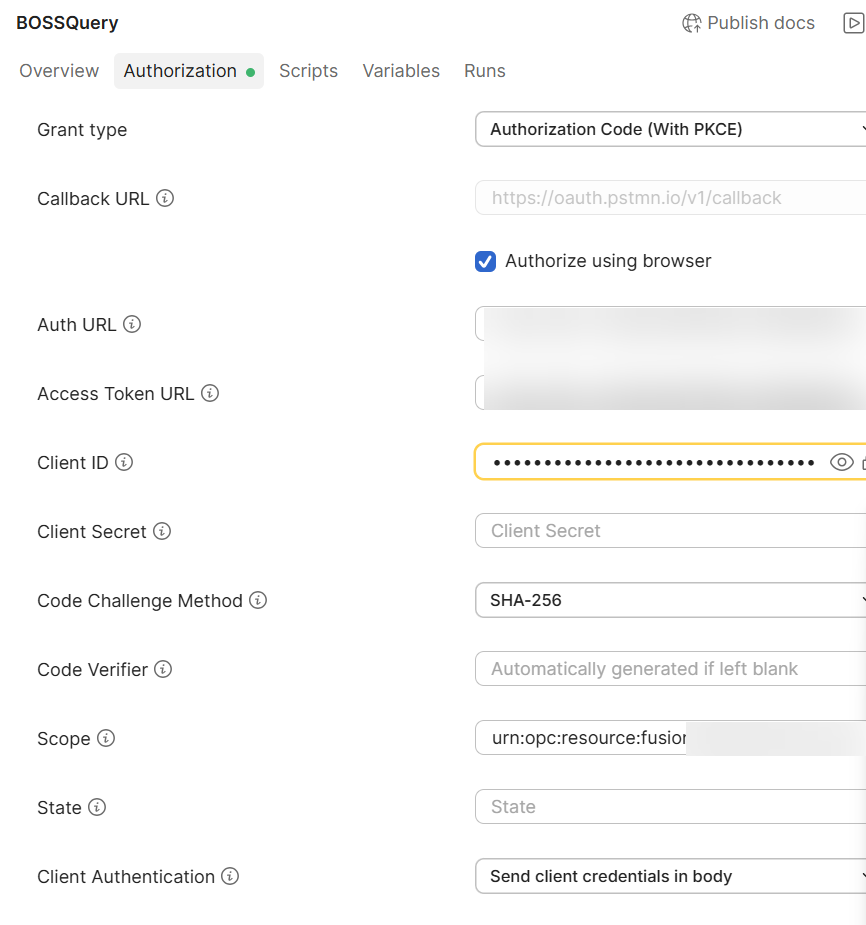
- Get a token in Postman. On the request's Authorization tab, choose OAuth 2.0 and set the grant type to Authorization Code (With PKCE). Tick Authorize using browser, enter
https://<identity domain>/oauth2/v1/authorizeas the Auth URL andhttps://<identity domain>/oauth2/v1/tokenas the Access Token URL, paste the client ID, leave the client secret blank, choose SHA-256 and set the scope tourn:opc:resource:fusion:<pod>:boss/. Click Get New Access Token, sign in to Fusion in the browser window that opens, then click Use Token.
- Send a test call. Send this request, which reads the General Ledger journal sources that need approval:
POST https://<your-pod>/api/boss/data/objects/ora/erpCore/accountingSetup/v1/journalSources/$query
Authorization: Bearer <token>
Content-Type: application/json
Accept: application/json
{
  "collection": {
    "filter": "journalApprovalFlag = true",
    "limit": 5,
    "sortBy": [ { "userJeSourceName": "asc" } ]
  },
  "fields": [ "userJeSourceName", "description", "journalApprovalFlag" ]
}
A 200 with an items array means everything is in place, and on my pod it returned two sources, AutoCopy and Real Estate. A 401 means the token wasn't accepted, which is usually the scope, and a 403 means the token works but the user's roles lack the permission group for that object. A 406 means the request didn't send Accept: application/json.
Your code needs the same settings you gave Postman, which are the authorize and token URLs, the client ID, the redirect URL and the BOSS scope. Because this is a public client, there is no secret to store.
Setting up a client for an integration
An integration with no person present uses a Confidential Application and the client credentials grant. The token then carries the application's own identity, and Fusion gives it only the roles assigned to the application.
- Add a Confidential Application. In Integrated applications, click Add application, choose Confidential Application and give it a name.
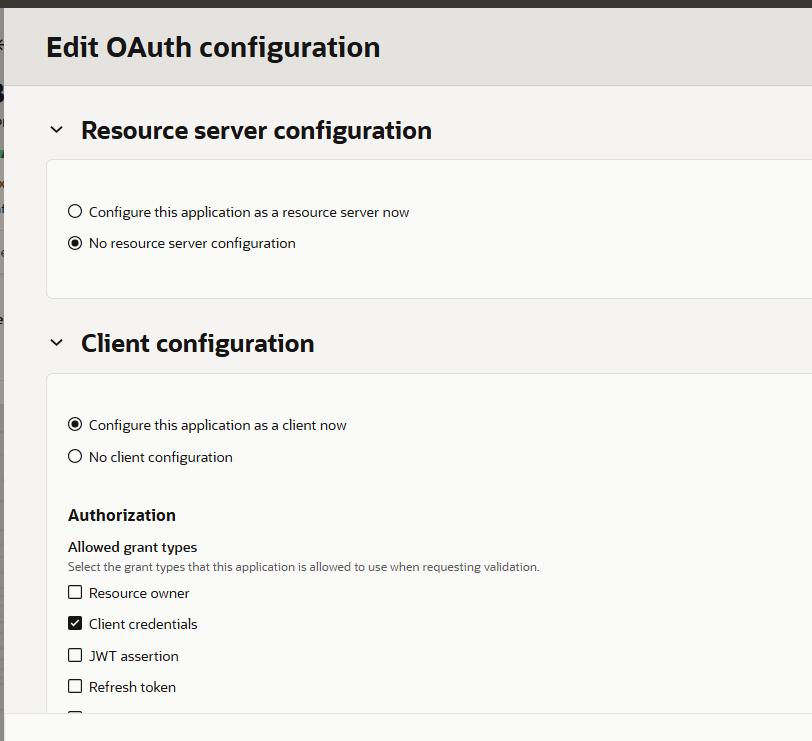
- Allow client credentials. On the OAuth configuration tab, choose Configure this application as a client now, tick Client credentials and leave the other grant types unticked.
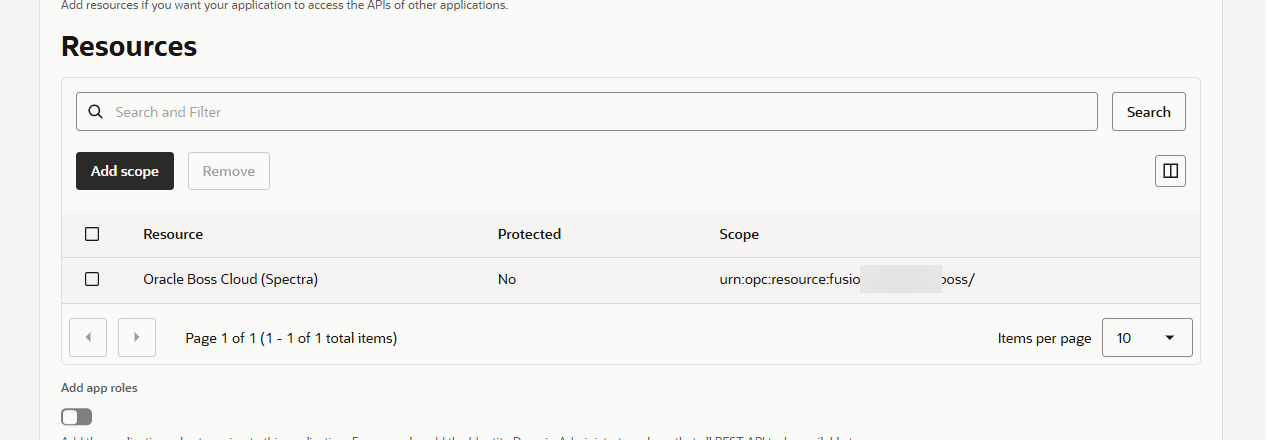
- Add the BOSS scope. Under Token issuance policy, turn on Add resources, click Add scope and tick Oracle Boss Cloud (Spectra), then save and choose Actions > Activate.
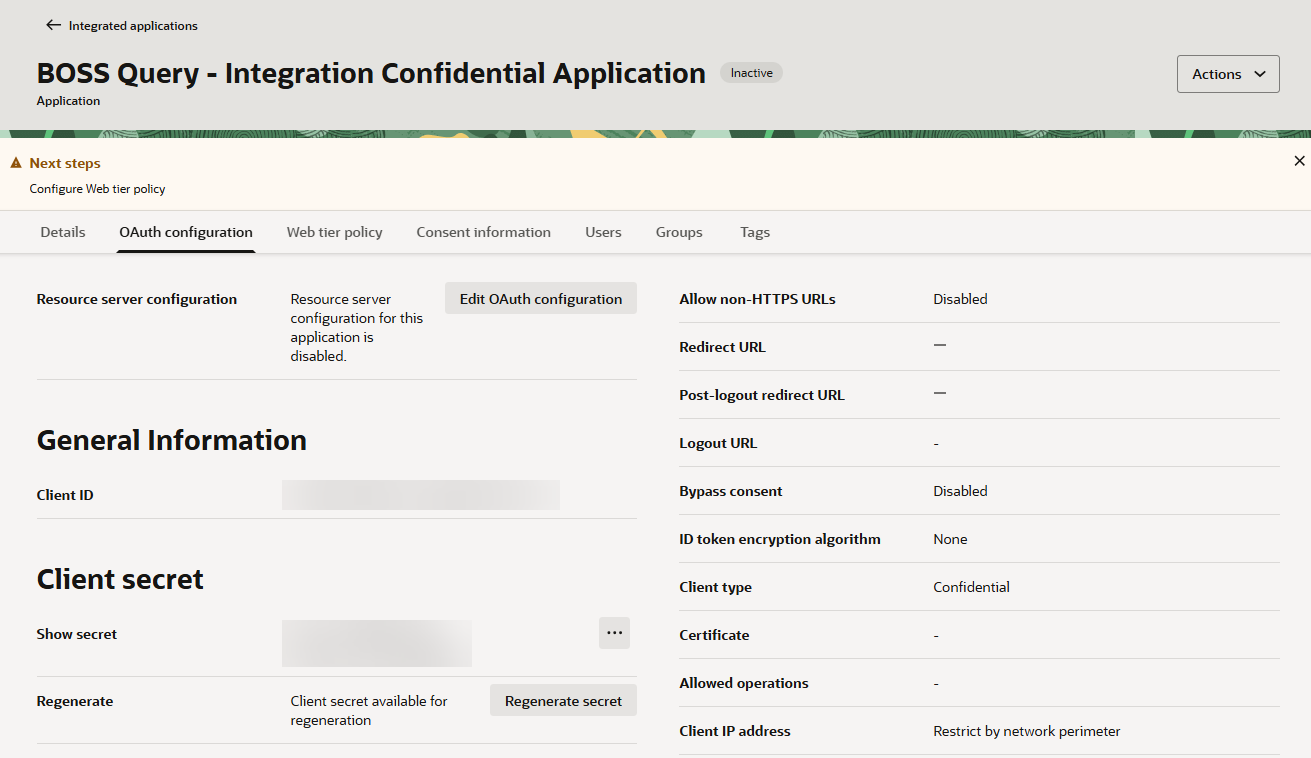
- Copy the client ID and secret. Both are on the OAuth configuration tab. Treat the secret like a password, and keep it in a secrets store rather than in a repository, a configuration file or a screenshot.
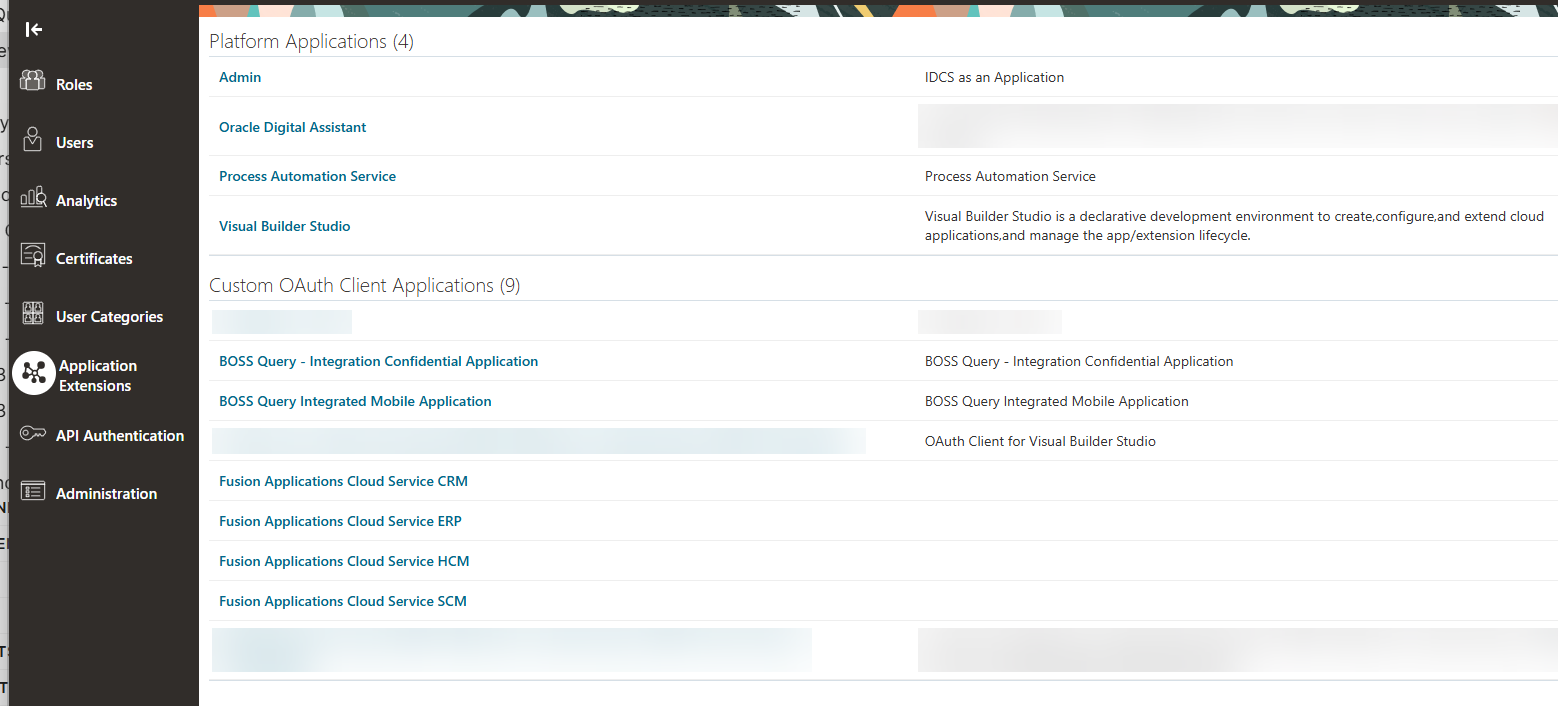
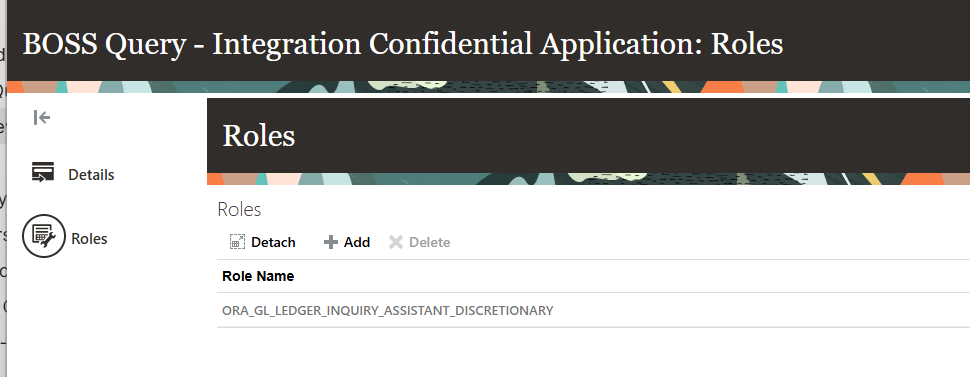
- Give the application a role. In the Fusion Security Console, open Application Extensions. Under Custom OAuth Client Applications, pick the application, open Roles, click Add and add the role, such as Ledger Inquiry Assistant.
- Get a token and call. In Postman, set the grant type to Client Credentials, enter the Access Token URL
https://<identity domain>/oauth2/v1/token, the client ID and secret and the BOSS scope, and choose Send as Basic Auth header. Then send a request withAccept: application/json.
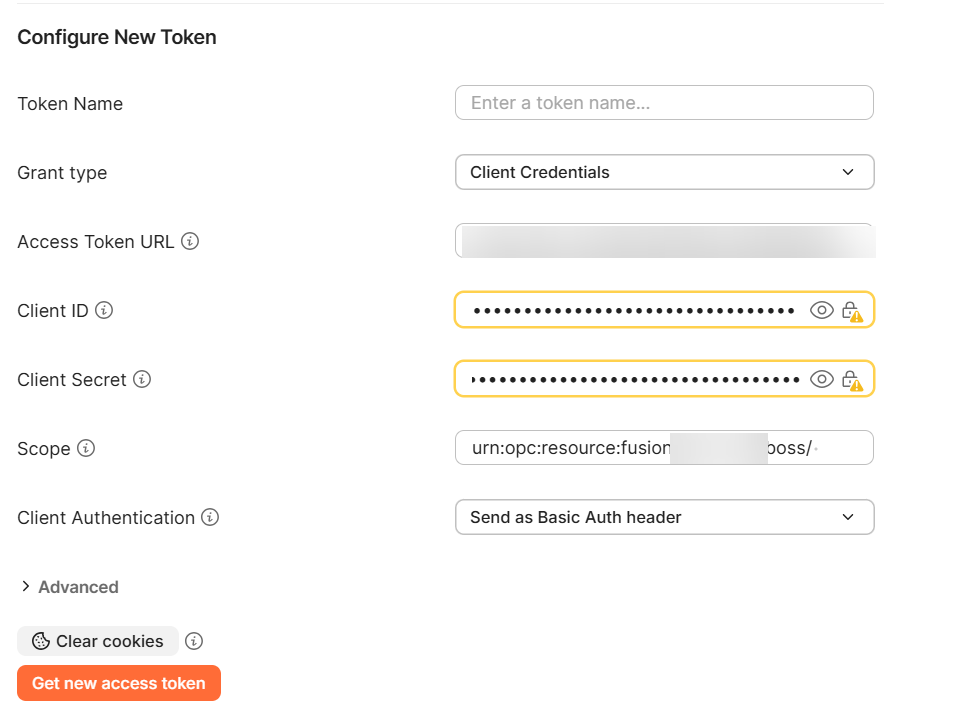
With this token, the journal sources call from step 9 of the previous section returns a 200, because journal sources are setup data that isn't secured by ledger. A query on journals, such as the extraction call in the previous post, returns 204 No Content. The role lets the application run the query, but General Ledger only shows the ledgers in the user's data access set, and because data access sets are assigned to users in Manage Data Access for Users, an application signed in as itself sees no journals.
For data that is secured like this, the program has to call as a user. Two common ways to do that are a JWT user assertion signed with a certificate and Oracle Integration's own options, and I'll cover both in a separate post.
Lessons learned
- When a call returns 403, first confirm in the Security Console that the role holds the object's permission group.
- Add
Accept: application/jsonto every request, because Postman sendsAccept: */*unless you change it and BOSS answers that with406 Not Acceptableand an empty body. - When a program needs data that is secured by ledger, business unit or something similar, have it call as a user, because an application signed in as itself gets permission to query but sees no rows.