EPM Integration Agent on OCI, Part 1: Bridging Oracle EPM Cloud to an Autonomous Database
This is a three-part series. Part 1: The Build (you are here) · Part 2: Pitfalls and Quick Reference · Part 3: One Agent, Many Databases
This is the full walkthrough of how we stood up the Oracle EPM Integration Agent on a small OCI Compute VM so that EPM Cloud (Planning) could pull data from an Autonomous Database it can't reach directly. It covers installing the agent, connecting it to the database, running a validated test extract, and setting the agent up as a Linux service that starts on its own.
Part 1 of 3: The Build.
Why EPM Cloud needed an agent to reach our database
Oracle EPM Cloud (Planning, FCCS, Data Integration and the rest of the suite) can pull and push data from a long list of sources, but it can't reach every database directly. In our case we had an Oracle Autonomous Transaction Processing (ATP) database that was reachable over the internet but sat in a different network context from the EPM pod (your EPM Cloud environment), so EPM's standard connectors couldn't get to it.
When EPM Cloud can't reach the target database directly, whether because of network segmentation, IP allow-listing or simply because the two services live in different tenancies, you need something in the middle that can see both sides. That's the job of the EPM Integration Agent, a small Java process that runs outside EPM, talks to your database on one side and exchanges data with EPM Cloud on the other.
We wanted it available around the clock without depending on anyone's laptop, so we ran the agent on an OCI Compute VM and locked it down so it accepts no inbound connections and only makes outbound calls. The rest of this post is the build, step by step.
What we built, and why the agent runs in asynchronous mode
- One small OCI Compute VM running the EPM Integration Agent as a managed Linux service.
- A minimal VCN, with admin access through OCI Bastion (managed SSH) instead of an open SSH port.
- An IAM group and policy for the developers who manage the instance.
- The agent sitting between EPM Cloud (outbound HTTPS, polling) and the ATP database (JDBC over the wallet's mTLS connection).
Most of the design follows from running the agent in asynchronous mode, where it polls EPM Cloud for work about once a minute. All traffic stays outbound, so the VM needs no public inbound ports and no public agent URL, which is what you want for a locked-down bridge. In synchronous mode the direction is reversed and EPM Cloud calls into the agent, which only works if the agent is reachable from the internet, so it doesn't fit this design.
Prerequisites
- An OCI tenancy with permission to create Compute, VCN/NSG, IAM and Bastion resources.
- An EPM Cloud (Planning) environment where you're a Service Administrator.
- The ATP database's wallet, a database user and password for the schema you'll query, and the EPM user's password.
- A Windows workstation with the OpenSSH client installed, since the transfer commands here use
sshandscp. - Outbound internet from the VM to
download.oracle.com(for the JDK) and to both EPM Cloud and the ATP database. - An EPM account that is a native username/password admin, not an SSO-only or federated account.
Step 1: Provision the OCI Compute instance
- Log into the OCI Console and pick the correct region in the region switcher at the top right. The instance, VCN and ATP all need to reach one another, so keep everything in one region unless you have a reason not to.
- Open the navigation menu (☰, top left) → Compute → Instances.
- Use the Compartment selector on the left to choose where the instance should live. If your organization separates workloads by compartment, create a dedicated one first.
- Click Create Instance.
- Under Name, enter something you'll recognize, e.g.
epm-integration-agent. - Under Placement, leave the default availability domain unless you have a specific one in mind.
- Under Image and shape, click Edit:
- Image: select Oracle Linux, then the newest Oracle Linux 8 or 9 build on offer.
- Shape: click Change shape → Virtual Machine → an Ampere or Intel/AMD flex shape such as
VM.Standard.E4.Flex(orE5.Flex). Set 1 OCPU and 8–16 GB memory.
- Under Primary VNIC, confirm the VCN and subnet. A public subnet is fine, because OCI Bastion can target an instance in a public subnet just as well as one in a private subnet. The NSG in Step 2 is what keeps SSH closed to the open internet.
- Leave Automatically assign public IPv4 address checked if you want a public IP for convenience, for example for quick browser troubleshooting. It doesn't weaken security as long as the NSG rule from Step 2 is in place.
- Under Add SSH keys, choose Generate a key pair for me and click Save private key, or upload your own public key. You'll need this key to create Bastion sessions later. OCI lets you download the private key, but keep the matching public key as well, because you paste the public key in when you create a Bastion session in Step 3e.
- Leave Boot volume at its default (50 GB is plenty) and click Create.
- Wait for the instance to show Running, which usually takes under two minutes. Then open its detail page and note the Private IP (and the Public IP, if one was assigned), since you'll need them for the NSG rules and the Bastion session.
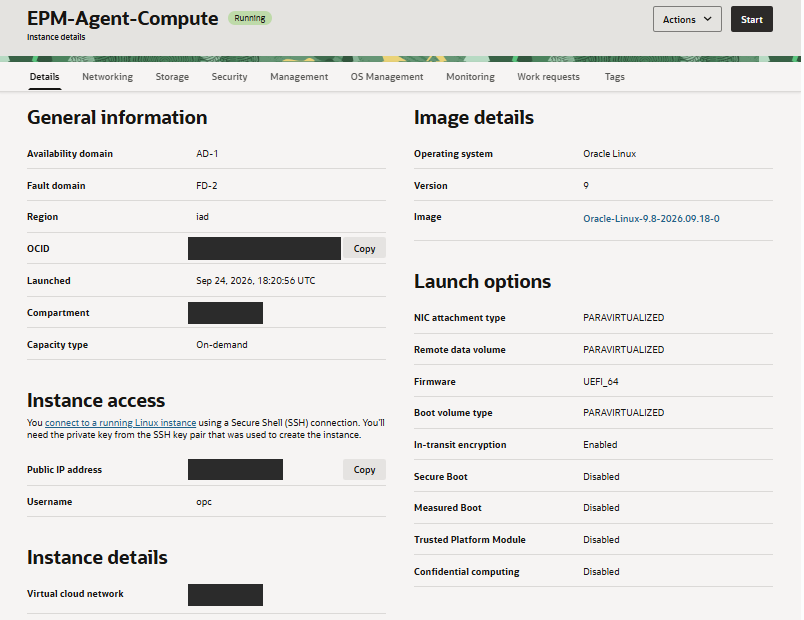
Instance detail: the agent VM, Running (Oracle Linux 9).
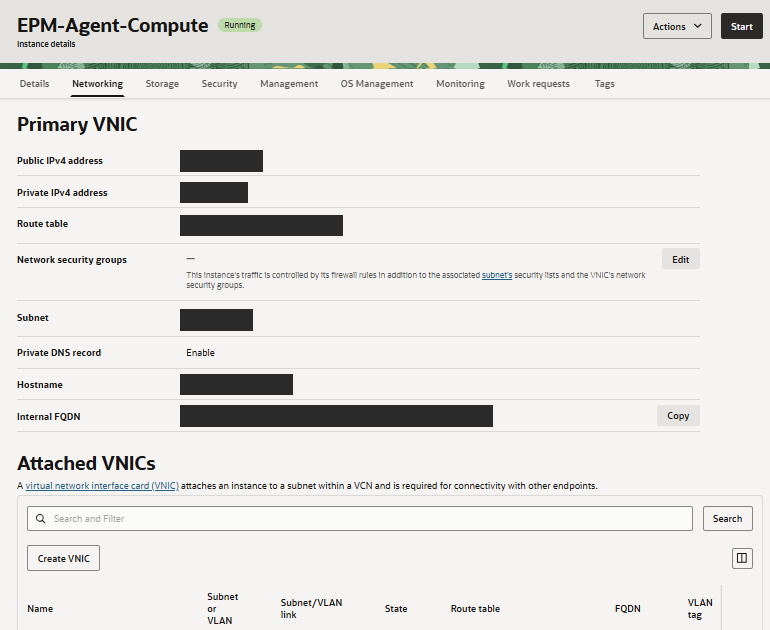
Instance → Networking: Primary VNIC with public and private IP, subnet and FQDN (redacted).
Why a public IP is OK here: Bastion's managed SSH session reaches your instance from inside the VCN through a private endpoint, not from the internet. Once Step 2 limits inbound SSH to the VCN's own CIDR, nobody can SSH in directly from the internet, whether or not the subnet is technically "public."
Step 2: Restrict traffic with a Network Security Group (NSG)
An NSG gives you firewall rules at the resource level, which is tighter than a security list that applies to the whole subnet.
Create the NSG: Navigation menu → Networking → Virtual Cloud Networks → click your VCN → under Resources click Network Security Groups → Create Network Security Group. Give it a name (e.g. epm-agent-nsg), confirm the compartment and create it.
Add the rules on the NSG's detail page (Add Rules):
| Direction | Type | Source / Destination | Port | Why |
|---|---|---|---|---|
| Ingress | CIDR | Your VCN's CIDR only (e.g. 10.0.0.0/16, never 0.0.0.0/0) | TCP 22 | lets OCI Bastion reach the VM and blocks SSH from the open internet |
| Egress | CIDR | 0.0.0.0/0 | TCP 443 | agent to EPM Cloud (HTTPS) |
| Egress | CIDR | 0.0.0.0/0 | TCP 1522 | agent to ATP (the Autonomous DB listens on TCP port 1522, TLS-encrypted) |
Confirm the port in your wallet's tnsnames.ora. It's 1522 for us, but use whatever the PORT= entry there shows.
For the SSH rule, you'll find your VCN's CIDR block on the VCN's details page. The 1522 egress rule is easy to forget: the agent authenticates to EPM on 443 but connects to the database on 1522, so both ports have to be allowed outbound.
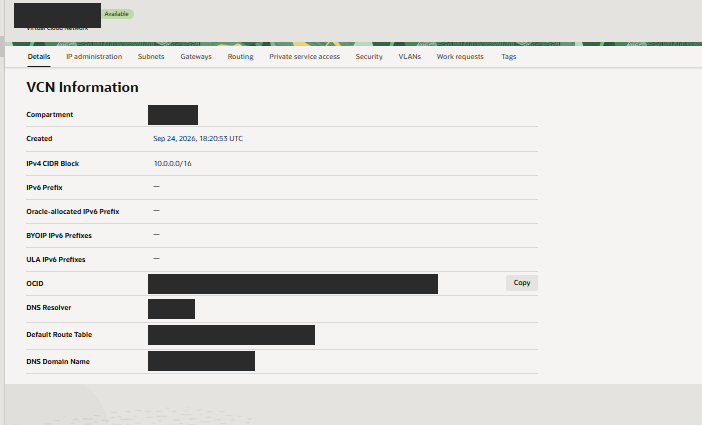
VCN details: the IPv4 CIDR block (10.0.0.0/16) used for the ingress rule.
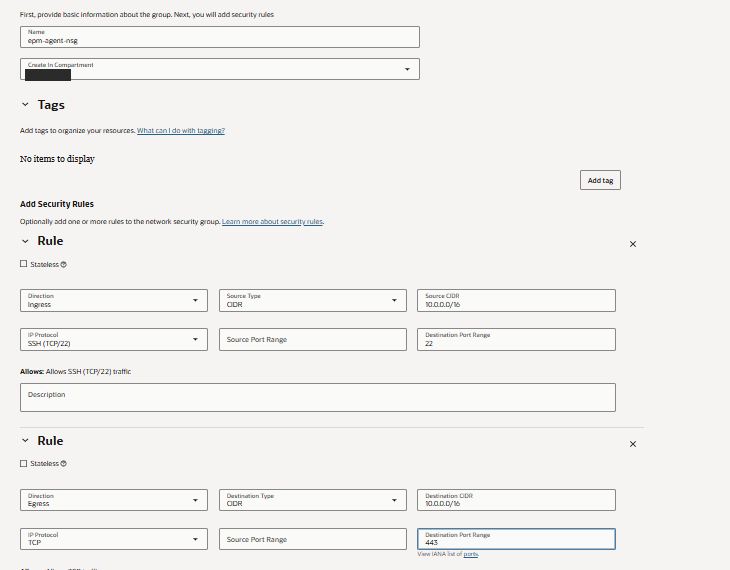
Create NSG: ingress SSH on 22 from the VCN CIDR, plus an egress 443 rule (use 0.0.0.0/0 as the egress destination, as in the table above).
Step 3: OCI Bastion for developer access
Instead of sharing a standing SSH key on an open port, we route all admin access through OCI Bastion, which gives each developer short-lived sessions authenticated through IAM. You'll set up an IAM group and policy and create the bastion, and then each developer connects through it.
Bastion is a bit of a pain to live with. Every time you want to get on the box you create a new managed SSH session in the console, wait for it to go active and paste its new session OCID into your ProxyCommand, and when its time-to-live runs out (three hours at most) you do it all over again. I put up with it because the security is worth it. Nothing is listening for SSH on the internet, nobody holds a standing key to the box, access goes through IAM, and every session gets logged.
3a. Create the IAM group
Most current tenancies use Identity Domains. Navigation menu → Identity & Security → Domains → click your workforce domain (commonly Default) → Groups → Create group. Give it a name with no spaces, e.g. epm-agent-admins, add a description and create it. On the group's detail page, use Add User to Group to add each developer.
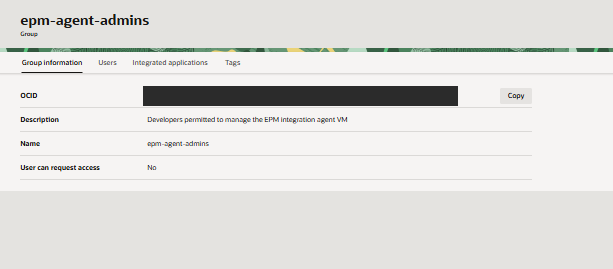
IAM group epm-agent-admins: group details.
3b. Create the compartment policy
The group has no permissions until a policy grants them. Navigation menu → Identity & Security → Identity → Policies → select the compartment that holds the instance and the bastion → Create Policy. Give it a name with no spaces, e.g. epm-agent-bastion-policy, click Show manual editor and enter the statements below, replacing <domain> with your identity domain name (e.g. Default) and <compartment> with your compartment:
Allow group <domain>/epm-agent-admins to manage bastion-session in compartment <compartment>
Allow group <domain>/epm-agent-admins to use bastion in compartment <compartment>
Allow group <domain>/epm-agent-admins to use instance-family in compartment <compartment>
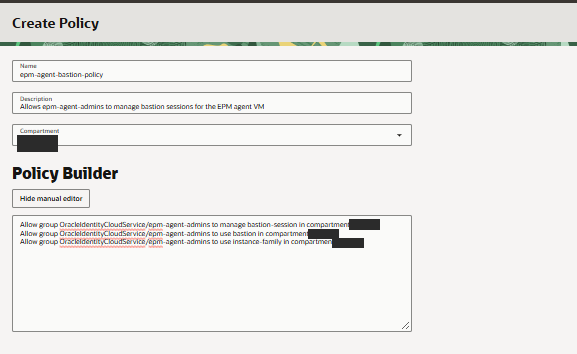
Create Policy: the manual editor with the three Allow statements.
3c. Create the bastion
Navigation menu → Identity & Security → Bastion → confirm the compartment → Create bastion. Name it (e.g. epm-agent-bastion) and select the same VCN and target subnet as the instance. For the CIDR block allowlist, use your VPN's egress CIDR if you have one. Otherwise use 0.0.0.0/0 and rely on IAM group membership and the per-session SSH key as the actual control. Leave Maximum session TTL at its default, which allows up to 3 hours (individual sessions can be set shorter). Create the bastion and wait for it to show Active.
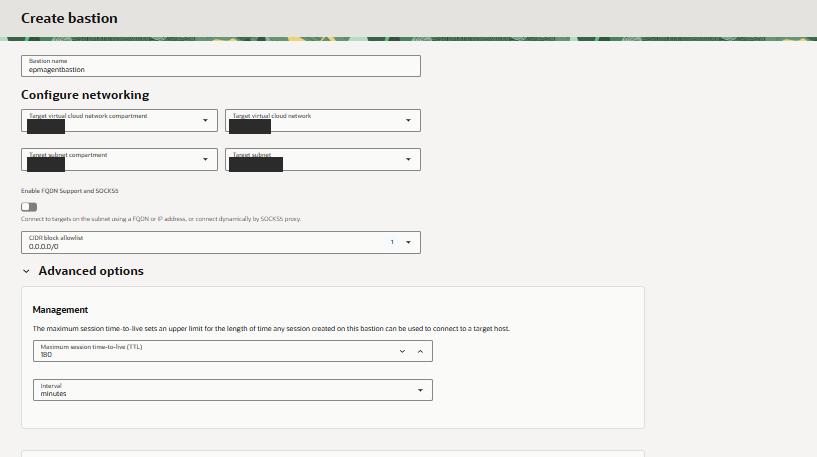
Create bastion: VCN, target subnet, CIDR allowlist and session TTL.
If your developers don't have static IPs: home and mobile connections hand out dynamic IPs, so a tight CIDR allowlist isn't practical. In order of preference, you can (1) use your organization VPN's fixed egress CIDR, (2) set the allowlist to
0.0.0.0/0and rely on IAM group membership plus the per-session SSH key for access control, or (3) script an allowlist update for each developer withoci bastion bastion update --client-cidr-block-allow-listright before they connect.
3d. Enable the Bastion plugin on the instance
Managed SSH needs the Bastion plugin in the instance's Oracle Cloud Agent, and the plugin is off by default. Go to Compute → Instances → your instance → Oracle Cloud Agent tab, find Bastion in the plugin list and toggle it on. Wait for its status to change from Enabling to Running. That can take up to about 10 minutes, so refresh the page to check.
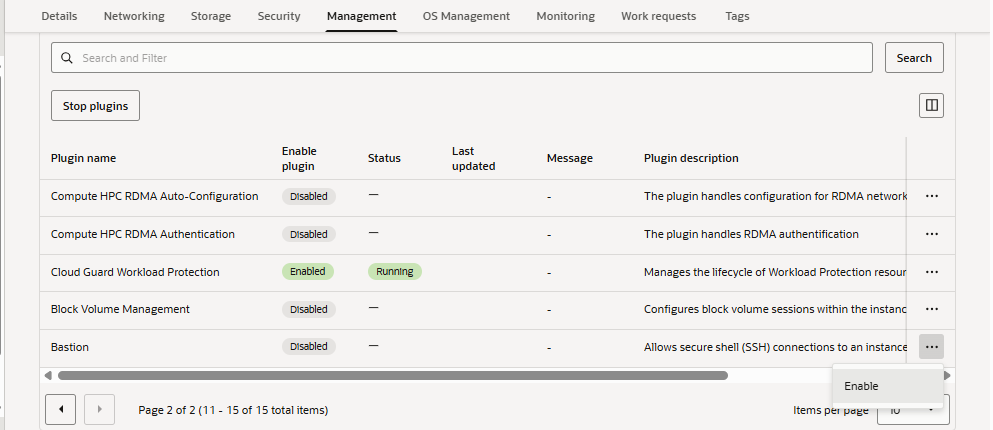
Oracle Cloud Agent: the Bastion plugin before enabling (Disabled).
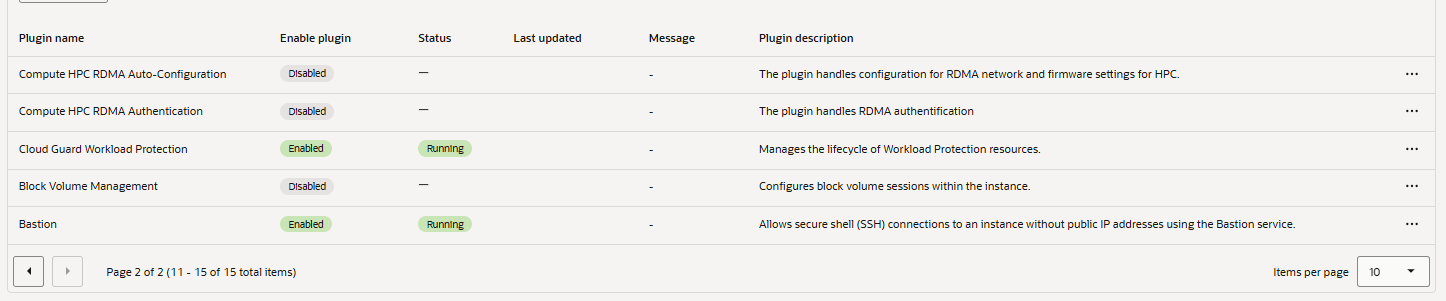
Oracle Cloud Agent: the Bastion plugin Enabled and Running.
3e. Create a session (each developer does this when they need access)
From the bastion's detail page, click Create session and choose the session type Managed SSH session. Enter a session name, and under Username enter the OS account, which is opc for the Oracle Linux platform image. Under Compute instance select the target, and under Add SSH key paste the public key that matches the private key you saved in Step 1. Create the session and wait for it to show Active.
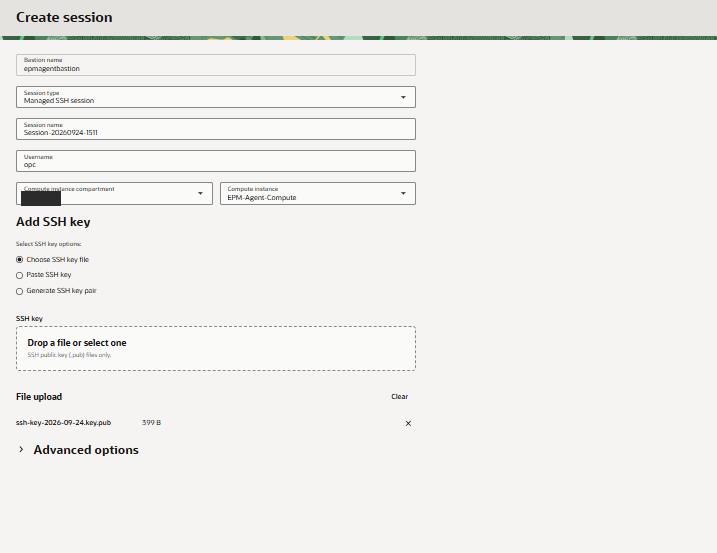
Create session: Managed SSH, target instance, public key uploaded.
3f. Connect
On the session's detail page, copy the SSH command. It tunnels through the bastion to the instance's private IP. From Windows PowerShell it looks like this (set the key path once, then connect):
$key = "C:\path\to\ssh-key.key"
ssh -i $key -o ProxyCommand="ssh -i $key -W %h:%p -p 22 <bastion-session-OCID>@host.bastion.<region>.oci.oraclecloud.com" -p 22 opc@<instance-private-ip>
Run it and you should land at a shell prompt on the agent VM ([opc@… ]$). The <bastion-session-OCID> in that command belongs to that one session, so when it reaches its TTL and expires you go back to 3e, create a new session and paste its new OCID into the ProxyCommand.
Gotcha (Windows): if OpenSSH says "UNPROTECTED PRIVATE KEY FILE" and ignores the key, lock down the key file's permissions first and then reconnect:
icacls "C:\path\to\ssh-key.key" /inheritance:r /grant:r "$($env:USERNAME):R"
Note: once a session has expired you get
Permission denied (publickey)even though nothing about your key has changed. The cause is the session clock, so create a fresh session (3e) and reconnect.
Step 4: Install Java (Oracle JDK 17)
The agent needs Java 17 or later, and we used Oracle JDK 17. Check the certification matrix for your EPM release before you choose a JDK. Run this on the VM:
wget https://download.oracle.com/java/17/latest/jdk-17_linux-x64_bin.rpm
sudo dnf localinstall -y jdk-17_linux-x64_bin.rpm
java -version
java -version should report 17.x. Then run ls /usr/lib/jvm/ and note the install directory, which is typically /usr/lib/jvm/jdk-17.x.x-oracle-x64. You'll point JAVA_HOME at it in the service unit in Step 15, and keep in mind that the patch version (e.g. 17.0.12) will differ over time.
Step 5: Download and install the EPM Integration Agent
- In EPM Cloud, as an admin, go to Data Exchange → Data Integration → Actions → Download Agent and save
EPMAgent.zip.
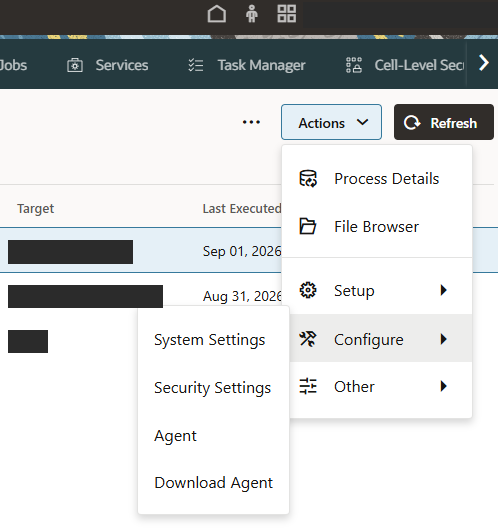
EPM Data Integration: Actions → Configure → Download Agent.
- Copy the zip to the VM. Because SSH goes through Bastion, you tunnel
scpthe same way. Add-O, because the legacy protocol transfers more reliably through the Bastion proxy:
scp -O -i $key -o ProxyCommand="ssh -i $key -W %h:%p -p 22 <OCID>@host.bastion.<region>.oci.oraclecloud.com" -P 22 EPMAgent.zip opc@<instance-private-ip>:/home/opc/
- On the VM, create a dedicated service account and install location, then extract the zip:
sudo useradd -r -m -d /opt/epmagent -s /sbin/nologin epmagent
sudo mv /home/opc/EPMAgent.zip /opt/epmagent/
sudo unzip /opt/epmagent/EPMAgent.zip -d /opt/epmagent
sudo chown -R epmagent:epmagent /opt/epmagent
The extracted tree is
bin/ cert/ lib/ Sample/. There's no top-levelconfig/and no sample.cred, because a script generates the app folder and config in Step 6. An emptycert/folder is normal.
Because
/opt/epmagentis owned byepmagentandopccan'tcdinto it, always run agent commands in a single call:sudo -u epmagent bash -c 'cd /opt/epmagent/bin && ./<script> ...'. If you try a plaincdasopc, it fails silently and the script then runs from the wrong directory.
- Encrypt the EPM Cloud user's password, which the agent uses to authenticate to EPM:
sudo -u epmagent bash -c 'cd /opt/epmagent/bin && ./encryptpassword.sh'
# Enter the EPM password at the prompt; copy the encrypted string.
Step 6: Create the application folder
In this build, a script generates the app structure (data/ logs/ config/ scripts/) and a starter agentparams.ini, and it has to be run from inside bin/:
sudo -u epmagent bash -c 'cd /opt/epmagent/bin && ./createAppFolder.sh /opt/epmagent/apps/<appname>'
sudo cat /opt/epmagent/apps/<appname>/config/agentparams.ini
Pick a short <appname> (e.g. salesdw). It's only the local folder name.
Step 7: Configure agentparams.ini
Edit /opt/epmagent/apps/<appname>/config/agentparams.ini:
| Field | Value / rule |
|---|---|
AGENT_NAME | Alphanumeric, 14 characters or fewer. A name longer than 14 characters makes registration fail on the server side with a generic HTTP 500 (see the warning below). |
CLUSTER | The exact name of the agent cluster you'll create in EPM in Step 8, e.g. EPMCLUSTER. |
CLOUD_URL | The base pod URL only, e.g. https://yourpod.epm.us-ashburn-1.ocs.oraclecloud.com, with no application path and no trailing slash. |
CLOUD_DOMAIN | Blank for OCI Gen 2 (.ocs. in the URL). |
CLOUD_USER_NAME | A native EPM admin account, not a federated or SSO-only one. |
CLOUD_PASSWORD | The encrypted string from Step 5, in double quotes. |
POLL_INTERVAL | Seconds between polls in async mode (default 60). |
Leave the rest at their defaults.
Warning on
AGENT_NAME: keep it to 14 characters or fewer. If you go over, nothing tells you so. Registration authenticates fine and then fails with a generic HTTP 500, and we spent hours chasing the network, the user's roles and the agent binaries before we found it (the full story is in Part 2). Capping a name field at 14 characters is odd enough, but enforcing it with an unexplained 500 is just idiotic.
Here's a complete sample with the password redacted:
EPM_AGENT_HOME=/opt/epmagent
EPM_APP_DATA_HOME=/opt/epmagent/apps/salesdw
AGENT_NAME=SALESDWAGENT
CLUSTER=EPMCLUSTER
PORT=9090
CLOUD_URL=https://yourpod.epm.us-ashburn-1.ocs.oraclecloud.com
CLOUD_DOMAIN=
CLOUD_USER_NAME=epm_service_admin
CLOUD_PASSWORD="<encrypted string from Step 5>"
LOG_LEVEL=ALL
POLL_INTERVAL=60
EPM_APP_DATA_HOME points at the application folder from Step 6, and the agent reads each data source's credential file from that folder's config/ subdirectory, which becomes important in Part 3. CLOUD_USER_NAME has to be a native, non-SSO admin. Keep CLOUD_PASSWORD formatted exactly the way the generated starter file has it, with the value wrapped in double quotes.
Step 8: Create the agent cluster in EPM (Asynchronous)
In EPM Cloud, go to Data Exchange → Data Integration → Actions → Agent and create a cluster whose name matches CLUSTER in the ini (e.g. EPMCLUSTER). Set its mode to Asynchronous. In asynchronous mode the agent polls EPM using outbound calls only, which is what makes the no-inbound design work.
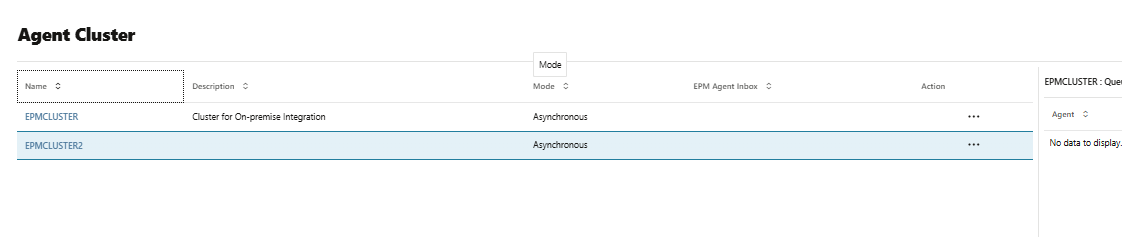
Agent Cluster list: clusters running in Asynchronous mode.
Step 9: Start the agent and confirm registration
sudo -u epmagent bash -c 'cd /opt/epmagent/bin && ./epmagent.sh /opt/epmagent/apps/<appname>/config/agentparams.ini'
The log is at /opt/epmagent/apps/<appname>/logs/epmagent.log. On success it shows Session based authentication cookie generated followed by registration with no error, and the agent shows as Online under Actions → Agent in EPM. In Step 15 we'll turn this manual start into a service that starts automatically.
If the agent doesn't come Online and the log shows a bare HTTP 500 on registration, the cause is almost always an AGENT_NAME longer than 14 characters (see Part 2).
Step 10: Download and stage the ATP wallet
- In OCI, go to Oracle Database → Autonomous Database → your DB → DB Connection → Download Wallet (Instance Wallet) and set a wallet password when prompted.
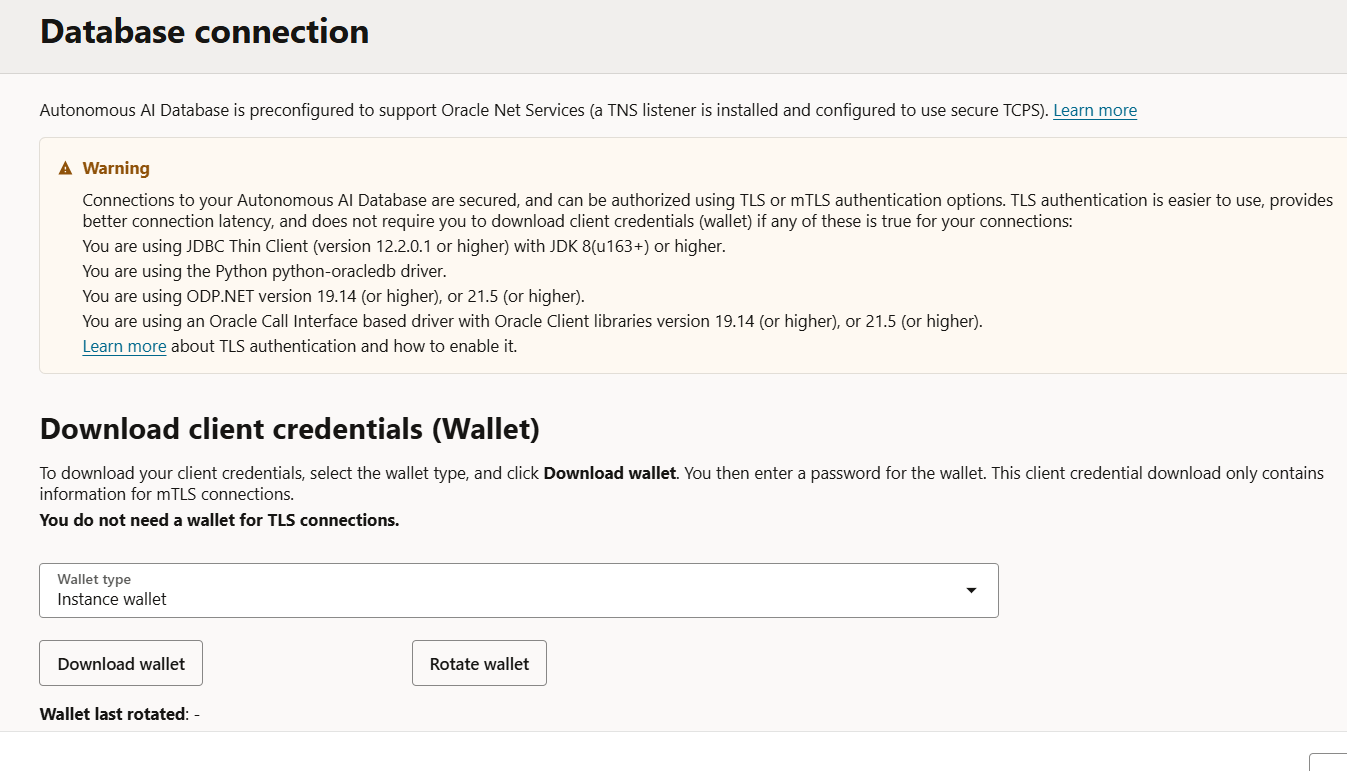
ATP Database Connection: Download client credentials (Wallet).
- Copy it to the VM with
scp -Othrough the same tunnel as in Step 5, then run:
sudo mkdir -p /opt/epmagent/wallet
sudo unzip Wallet_<db>.zip -d /opt/epmagent/wallet
sudo chown -R epmagent:epmagent /opt/epmagent/wallet
sudo chmod 700 /opt/epmagent/wallet
sudo cat /opt/epmagent/wallet/tnsnames.ora   # note a service name, e.g. <db>_low
The wallet's ojdbc.properties finds the wallet automatically through DIRECTORY=${TNS_ADMIN}, so you don't need to edit sqlnet.ora. All you do is point the JDBC URL's TNS_ADMIN at this folder, which happens in the next step.
Step 11: Create the database credential file
You won't know the credential file's final name until Step 12 creates the application, so create it now with a working name and rename it afterwards.
- Encrypt the database password (the same utility works for any password):
sudo -u epmagent bash -c 'cd /opt/epmagent/bin && ./encryptpassword.sh'
# Enter the DB password at the prompt; copy the encrypted string.
- Create the credential file. Its name must exactly match the name of the EPM data source application you'll create in Step 12, and the match is case-sensitive, so it's fine to use a placeholder name now and rename the file once EPM tells you the final name:
sudo -u epmagent nano /opt/epmagent/apps/<appname>/config/<ApplicationName>.cred
driver=oracle.jdbc.driver.OracleDriver
jdbcurl=jdbc:oracle:thin:@<db>_low?TNS_ADMIN=/opt/epmagent/wallet
username=<DB_USER>
password=<ENCRYPTED_DB_PASSWORD>
Tip: before you involve EPM at all, prove the database connection straight from the VM using the agent's own jars. Save this as TestDb.java and run it as the epmagent user:
import java.sql.*;
public class TestDb {
  public static void main(String[] a) throws Exception {
    String url = "jdbc:oracle:thin:@salesdw_low?TNS_ADMIN=/opt/epmagent/wallet";
    try (Connection c = DriverManager.getConnection(url, "<DB_USER>", "<DB_PASSWORD>");
         ResultSet r = c.createStatement().executeQuery("select user from dual")) {
      r.next();
      System.out.println("Connected as " + r.getString(1));
    }
  }
}
sudo -u epmagent bash -c 'cd /tmp && javac -cp "/opt/epmagent/lib/*:/opt/epmagent/bin/*" TestDb.java \
  && java -cp ".:/opt/epmagent/lib/*:/opt/epmagent/bin/*" TestDb'
If it prints Connected as ..., the database side is working and any later failure is in the EPM configuration.
Step 12: Register the On Premises Database data source in EPM
EPM calls this an "On Premises Database" even though ours is an Autonomous Database in OCI. The label really just means the database is reached through the agent.
A data source consists of a SQL query and a header file that describes the query's columns.
- Create a SQL query: go to Data Integration → Actions → Query and add one (e.g.
EPMAgentTestQuery) with yourSELECT. - Create a header file: this is a one-line CSV you upload from your PC. Its header row lists exactly the column names your query returns, in order and comma-separated, with no data rows. For
SELECT * FROM DUALthat's the single columnDUMMY, and for a real query you use your actual column names. - Register the application: go to Data Integration → Actions → Applications → Add → Data Source → On Premises Database, browse to the header file, optionally set a Prefix, and save.
Note the exact application name EPM creates. It puts your prefix in front of the file's base name, so prefix
ATPTESTplussalesdw_sourcebecomesATPTESTsalesdw_source. Rename your.credfile to match it exactly.
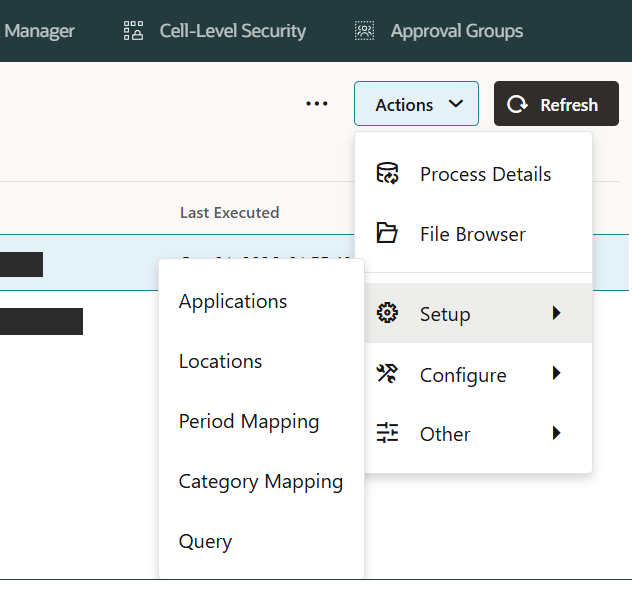
Data Integration → Actions → Setup (Applications, Query and the rest).
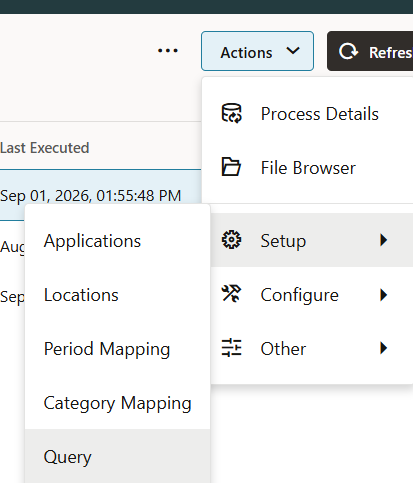
Actions → Setup → Query, where you create the SQL extract query.
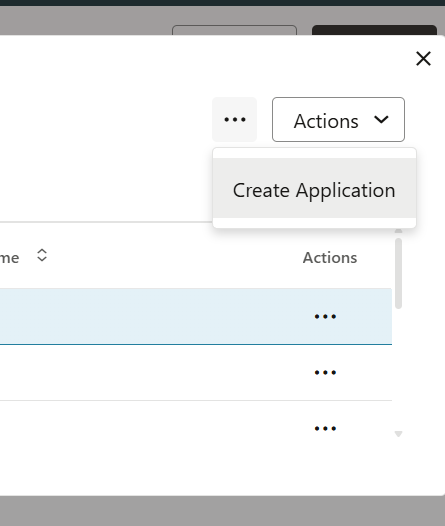
Actions → Create Application.
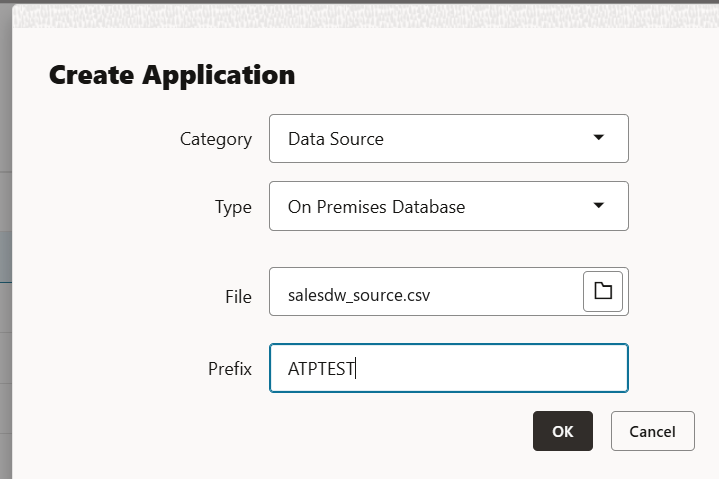
Create Application with Category: Data Source, Type: On Premises Database, the header file and the Prefix (ATPTEST).

Applications list showing the registered ATPTESTsalesdw_source data source.
Step 13: Point the data source at the agent
Open the new application's Application Filters / Options and set:
- Data Extract Query to your query (
EPMAgentTestQuery) - Delimiter to comma
- Credential Store to File, so it reads the
.credfile on the agent (leave the URL, user and password fields in the UI blank) - Fetch Size to the default
Then assign the cluster: go to Actions → Agent → EPMCLUSTER → Assignments and set it as the Default cluster, or assign this source application to it. If you skip the assignment, extracts fail with "Cluster not found" (see Part 2).
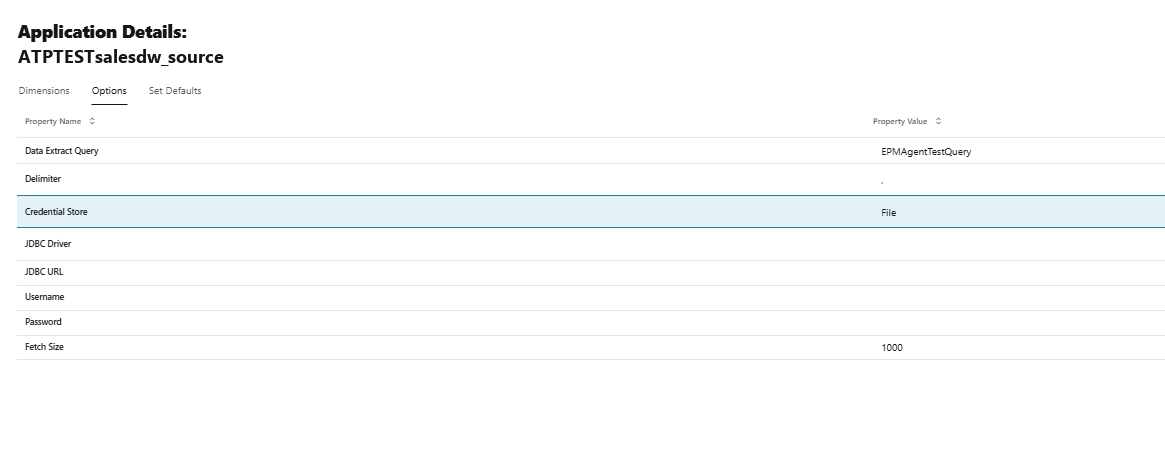
Application Details → Options: Data Extract Query, Delimiter, and Credential Store set to File.

Agent cluster → Assignments, with the EPMAgentTest integration assigned to the cluster.
Step 14: Validate with a test extract (no target load)
You can prove the whole chain without loading any Planning cube by running only the Import phase, which extracts from the source into staging. The Export phase is the only one that writes to a target, and we skip it.
- Create an integration (Data Integration → Create) with a Name and Location, your data source as the Source, and any registered app as the Target (nothing gets written to it). Click through the mapping screens and accept the defaults on each one, since mappings only matter for Export and nothing you set there is used when Export = No.
- Click Run, set Import from Source = Yes and Export to Target = No, then run it. In async mode allow up to about 60 seconds, because the agent picks up the job on its next poll.

Edit Integration: EPMAgentTest, showing the integration wizard (General, Map Dimensions, Map Members, Options).
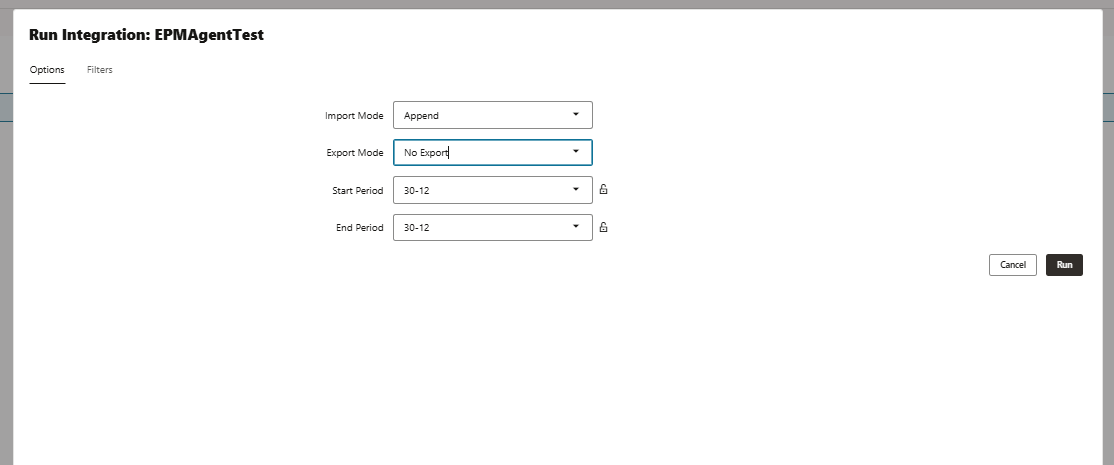
Run Integration with Import Mode set and Export Mode = No Export, for an import-only test.
A successful run logs the agent executing the query, writing an extract file and uploading it to EPM, for example:
Retrieved Cluster Mode: ASYNC
Calling agent extract ASYNC mode: BEGIN
query: SELECT * FROM DUAL     credStore: LOCAL_FILE
Writing extract file ... /opt/epmagent/apps/<appname>/data/<id>.dat
File Upload successfully complete
*On Prem DB Extract: Completed*     PROCESS_EXTRACT_DATASOURCE = SUCCESS
That log means the agent read from ATP and delivered the file to EPM, so the whole path works. If this step fails with java.net.UnknownHostException instead, your cluster is in Synchronous mode and needs to be switched to Asynchronous (see Part 2).
Step 15: Run the agent as a Linux service that starts automatically
So far the agent is a process you started by hand, so it stops when the VM reboots or the process dies. Turning it into a systemd service (systemd is the standard Linux service manager) means it starts on boot and restarts on its own if it stops. Run these commands on the VM as opc, using sudo:
1. Stop any agent you started manually:
sudo pkill -f ServerExecutor; sleep 2; pgrep -af ServerExecutor || echo "stopped"
2. Create the service unit, adjusting JAVA_HOME and the <appname> path to match your install:
sudo tee /etc/systemd/system/epmagent.service > /dev/null <<'EOF'
[Unit]
Description=Oracle EPM Integration Agent
After=network-online.target
Wants=network-online.target

[Service]
Type=forking
User=epmagent
Group=epmagent
WorkingDirectory=/opt/epmagent/bin
Environment=JAVA_HOME=/usr/lib/jvm/jdk-17.0.12-oracle-x64
Environment=PATH=/usr/lib/jvm/jdk-17.0.12-oracle-x64/bin:/usr/bin:/bin
ExecStart=/opt/epmagent/bin/epmagent.sh /opt/epmagent/apps/salesdw/config/agentparams.ini
SuccessExitStatus=124
TimeoutStartSec=90
Restart=always
RestartSec=30

[Install]
WantedBy=multi-user.target
EOF
Why
Type=forkingandSuccessExitStatus=124:epmagent.shlaunches Java withnohup … &, so Java detaches and keeps running, and the script then ends withsleep 5; timeout 10 tail -f …. Thattimeoutreturns exit code 124, which systemd would otherwise treat as a startup failure, killing the detached Java process along with it.Type=forkingtells systemd that the real daemon is the backgrounded Java process, andSuccessExitStatus=124tells it that the launcher's 124 exit is expected. With both set, systemd tracks thejavaprocess as the Main PID and keeps it running.
3. Make sure the launch scripts are executable, since re-extracting the zip can clear the flag:
sudo bash -c 'chmod +x /opt/epmagent/bin/*.sh'
4. Enable and start the service:
sudo systemctl daemon-reload
sudo systemctl enable epmagent
sudo systemctl start epmagent
5. Confirm it's running and polling:
systemctl status epmagent --no-pager
pgrep -af ServerExecutor
sudo tail -n 20 /opt/epmagent/apps/salesdw/logs/epmagent.log
You should see the service as active (running), a java ... ServerExecutor process, and a log showing registration followed by polling, and the agent should show as Online in EPM.
These are the commands I use day to day:
sudo systemctl restart epmagent     # after editing agentparams.ini or changing cluster mode
sudo systemctl stop epmagent
journalctl -u epmagent -f           # follow service output
What is running at the end of Part 1, and what is left to build
You now have a hardened OCI VM running the EPM Integration Agent as a service in asynchronous mode, reaching an Autonomous Database through its wallet and delivering data into EPM Cloud, with nothing open for inbound access. The next job is to replace the throwaway test query with real extract queries and build out the import format, member mappings and period mappings that land the data in your Planning application.
This is Part 1 of a three-part series. Part 2, What the EPM Integration Agent Docs Don't Tell You, covers the pitfalls that cost us time and ends with a short Quick Reference cheat sheet. Part 3, One Agent, Many Databases, shows how to add more database connections to the same agent.